Access control
How to Enroll Cards in Access Control: A USB Desk Reader Workflow
By Henrium · · 10 min read
Quick answer
Find the format your controller stores, such as a 10-digit decimal or a Wiegand 26 facility code and card number. Set the USB desk reader, or the software, to produce that same number. Enroll one pilot card and check it at a door before bulk issue. Then enroll each card by clicking the card field and presenting the card.
Discuss your reader requirementsEnrolling an access card means linking the ID in its chip to a person in the access-control software. At a desk with a USB reader, each card takes a few seconds: click the card-number field, present the card, save. The step that goes wrong is the format. If the number typed at the desk is not the number the door reader sends to the controller, the card shows as enrolled and still does not open the door.
This guide is the desk procedure: find out which number your controller stores, choose where the conversion happens, set up the station, prove the format with one pilot card, then enroll in bulk. It does not repeat the bit-level detail. For that, see RFID card number formats and Wiegand 26 vs 34. For the full range of desk readers, including RS232 models, see USB card enrollment readers for access control.
What you need at the enrollment desk
- A reference card: one card that is already enrolled and opens a door.
- The door format: the configured bit length and field layout at both the reader and controller, confirmed from their settings and manuals. D0/D1 wiring alone does not identify the format.
- A desk reader on the same frequency as your cards: 125 kHz for EM4100 and TK4100, 13.56 MHz for MIFARE Classic. A reader on the wrong band does not react to the card at all. If you are not sure which cards you have, 125kHz vs 13.56MHz explains how to tell.
- The Wiegand 26/34 card number converter, open in a browser.
| Desk reader | Cards and range | Default output | Best for |
|---|---|---|---|
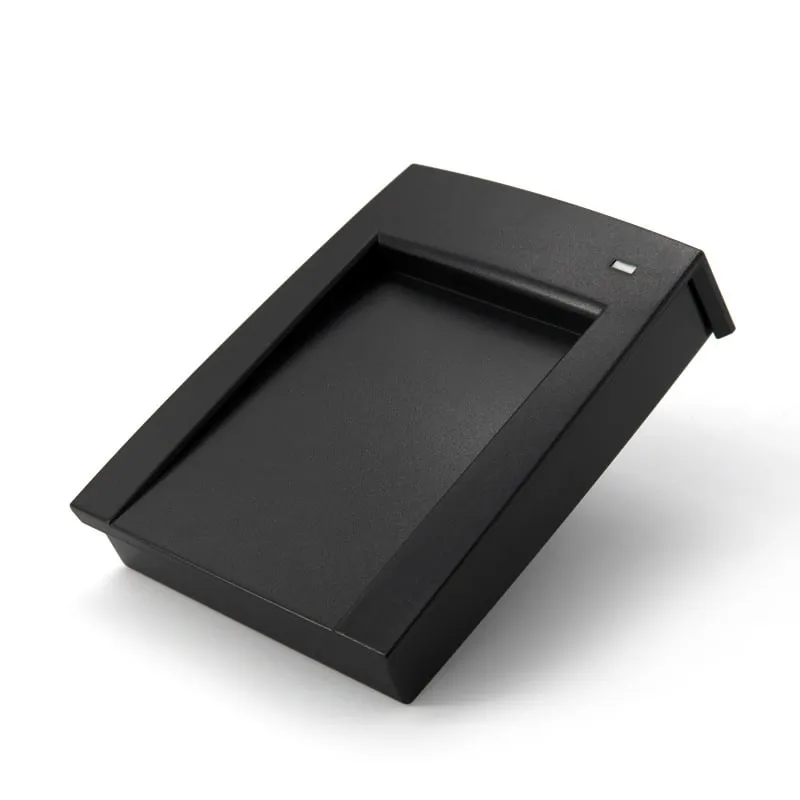
| L150-U 125kHz USB enrollment reader with card recess | EM4100, TK4100, SMC4001 cards and fobs, up to 80 mm | 10-digit decimal; custom format before shipment, or an optional DIP switch to choose the format on site | General enrollment desks |
| H110-U 13.56MHz USB MIFARE reader | MIFARE Classic 1K/4K and NTAG203 UIDs, up to 80 mm | 32-bit UID output as 10-digit decimal; 8-digit hex, reversed byte order or an added Enter on request | MIFARE card sites |
| L310-U 125kHz RFID reader with numeric keypad | EM4100, TK4100 cards up to 50 mm (30 mm for consistent reads), fobs up to 15 mm | 10-digit decimal + Enter | Desks where the operator also types employee numbers |
| H310-U 13.56MHz NFC reader with numeric keypad | MIFARE Classic 1K/4K and NTAG203 UIDs, same ranges as the L310-U | 10-digit decimal + Enter | The same, on MIFARE sites |
All four connect over USB as a keyboard and need no separate vendor driver. All four are read-only, so a mismatch is fixed in the desk output, the door format or the software, never on the card.
This workflow assumes a stable card identifier and a confirmed 32-bit output mapping. MIFARE UID lengths and behavior vary, and NTAG203 has a 7-byte UID: a 10-digit output does not contain that complete UID. Test your actual cards with both desk and door readers and confirm which bytes are output. A changing random ID is unsuitable for this simple fixed-ID enrollment workflow.
Step 1: Find the number your controller stores
Open the reference card’s record in the access-control software and look at the card-number field. Its shape is a clue, but confirm the field definitions and reader/controller settings. The examples below use one EM4100 card whose 32-bit ID, the last four bytes of its 40-bit code, is 1B2E7F09 in hex, with the common low-24-bit Wiegand 26 and full-32-bit Wiegand 34 mappings. Other suppliers can use different mappings or field layouts.
| What the field shows | Format | Where you see it |
|---|---|---|
0456032009: 10 digits |
Full 32-bit ID in decimal | Default output of USB desk readers; often printed on 125 kHz cards |
1B2E7F09: 8 characters, 0–9 and A–F |
Full 32-bit ID in hex | Software that stores UIDs as hex |
046,32521, or separate facility and card fields |
Wiegand 26: 8-bit facility code and 16-bit card number from the low 24 bits | Controllers fed by Wiegand 26 door readers, such as the L410-W at its default setting |
6958,32521 |
Wiegand 34: two 16-bit halves of all 32 bits | Controllers set to 34-bit input; some show the same 32 bits as the 10-digit number instead |
Start by entering the complete 32-bit value from the desk reader into the converter. Compare the calculated pair with the controller’s stored value and door log. Starting from a Wiegand 26 pair gives only the lower 24 bits; the original top byte cannot be recovered, and different full IDs can share the same pair. If the reference card has a number printed on it, check its documented format too. The print and the software do not always use the same format.
Step 2: Decide where the conversion happens
In the example, the desk reader types 0456032009 and a Wiegand 26 door sends 046,32521. Something has to bridge the two. Choose by the state of the site, not by preference.
| Site situation | Recommended route | Why |
|---|---|---|
| New site, no cards enrolled yet | If both reader and controller support the common full-32-bit Wiegand 34 mapping, test it with the desk’s default output. Otherwise match the supported controller format | Keeping all 32 ID bits avoids collisions caused by dropping the top byte; a pilot must also confirm how the software stores them |
| Existing Wiegand 26 site with enrolled cards | Keep Wiegand 26 at the doors. Match the desk output to it, or use the software’s own conversion if it has one | Changing the door format can change enrolled numbers and how the controller interprets them |
| Software stores hex | Order the desk reader with 8-digit hex output | Hex is a listed custom output for the H110-U |
| MIFARE numbers match only with the bytes reversed | Order reversed byte order | Some systems store the UID least-significant byte first |
| Mixed EM and MIFARE cards | One 125 kHz and one 13.56 MHz desk reader, or a Q430-M on its USB port | Each of these USB desk pads reads one band. The Q430-M QR code + RFID reader with USB output reads both in IC + ID mode and can type like a keyboard. It is specified for an 8–12 V DC, 800 mA supply |
On the L150-U, an optional DIP-switch version lets the installer select the output format on site, which helps when one installer serves controllers that store numbers differently. For other models, request the required format before shipment; available formats and the feasibility of keypad-reader alternatives are confirmed in your quotation.
Step 3: Set up the enrollment station
- Plug in the reader. It appears as a USB keyboard (USB HID class), so nothing is installed. The L150-U, H110-U, L310-U and H310-U list Windows XP, Vista, 7 and 10, Linux and Android.
- Set the input language to English (US). On other layouts, digits can arrive as different characters. Keyboard-wedge readers explained covers layout and input-method problems.
- Test in a text editor. Open Notepad, present the reference card and check the length of the number and whether a line break follows it.
- Check how the enrollment screen handles Enter. The L310-U and H310-U send Enter after every card number. That is useful in a search box, but on some forms it saves the record before the other fields are filled in. Fill in the other fields before you present the card.
- Keep spare cards out of range. The L150-U and H110-U read at up to 80 mm. Keep the stack of new cards off the pad, so the reader cannot pick up a card other than the one you are enrolling. The keypad readers’ shorter range, 30 mm for consistent reads, makes this easier on a crowded desk.
Step 4: Enroll one pilot card and test it at a door
Before you issue cards in bulk, enroll one new card to a test user with access to one door. Present it at that door and read the controller’s event log.
| Event log shows | Meaning | Fix |
|---|---|---|
| Access granted | Desk and door formats match | Go on to bulk enrollment |
| Known card, access denied | The ID may match, but access rights or a schedule do not permit this door | Check the test user’s assigned door and schedule before changing number formats |
| Unknown card, with a number in a different format from the one you enrolled | The desk typed one view of the ID, and the door sent another | Compare both in the converter, then apply a route from Step 2 |
| Unknown card, number equals the enrolled one byte-reversed | Byte-order difference, usually with MIFARE UIDs | Order the desk reader with reversed byte order |
| No event, but the reader beeps | Reader and controller use different Wiegand lengths, or a wiring fault | Match 26 or 34 at both ends, then check D0/D1 and the common ground. See Wiegand reader wiring |
| No beep at the door | Card and door reader are on different frequencies, or the reader has no power | Check the card band and the supply voltage at the reader |
On the L410-W Wiegand 26/34 door reader, the format is set by one wire: purple open for Wiegand 26, purple to GND for Wiegand 34. Confirm the controller accepts the chosen layout before changing it; this model-specific wire setting is not a rule for other readers. The pilot checks the complete desk-to-door path before bulk enrollment.
Step 5: Enroll cards in bulk
With a USB pad such as the L150-U or H110-U, repeat for each card:
- Open or create the cardholder record.
- Click the card-number field.
- Present the card. The LED turns green and the buzzer sounds.
- Check that the number has the expected length, then save and hand the card over.
With a keypad reader, the operator can stay on one device. Type the employee number on the keypad and press Enter to open the record, then present the card; the card number and Enter follow. If your software maps function keys, F1 to F5 can trigger actions such as save or next record.
If your software imports cardholder lists, a spreadsheet can be faster for large batches. Read the cards into a column next to the names, then import the file. Reading card numbers into Excel shows how to keep the leading zeros and flag repeated reads.
Treat duplicate warnings as real. On a Wiegand 26 site, two cards from different batches can share the same facility code and card number, because only 24 bits of each ID reach the controller. Set such a card aside rather than overriding the warning.
Lost, returned and replaced cards
- Lost card: revoke its permissions in the software and apply that change to the relevant door controllers, following your system’s update procedure. Confirm the old credential is blocked before you issue the replacement; changing a desk record alone may not update an offline controller.
- Returned card: read it at the desk, search the software for that number, and remove it from the previous holder before you reissue it.
- Temporary visitors: instead of lending enrolled cards, consider QR code + RFID access readers. There the visitor system issues a code, and no card has to be collected.
Checklist: choosing and configuring an enrollment reader
- Card frequency. The desk reader matches the cards: 125 kHz for EM4100/TK4100, 13.56 MHz for MIFARE Classic.
- Stored format. You know the format the controller stores, taken from an enrolled record rather than from the card print.
- Output. The desk output, or the software conversion, produces exactly that format.
- Door format. The door readers’ Wiegand length is recorded and will not change after enrollment starts.
- Enter behaviour. It suits the enrollment form: 10 digits + Enter on the keypad models, Enter on request on the H110-U.
- Input method. The software takes keyboard input. If it reads a COM port, use a DB9 desk reader from the RS232 and RS485 RFID readers range.
- Pilot. One card is enrolled and tested at a door before bulk issue.
To check the format before you order, send us an anonymized example of the stored card-number field, the number printed on a sample card, and the configured Wiegand layout of your door readers and controller. We can review the output options. The sample configuration, quantity and availability are confirmed in your quotation; test the agreed sample on your own controller before bulk enrollment. You can request a sample desk reader or share your enrollment requirements.
References and scope
- NXP AN10927: MIFARE product and handling of UIDs explains UID lengths, random identifiers and identifiers that are not globally unique. Test the actual card profile and reader output instead of assuming every NFC card exposes the same fixed 32-bit number.
- HID cards and credentials support describes format compatibility and replacement of lost credentials. The 26/34-bit examples here are the stated numerical mappings, not a universal rule for every access-control brand.
Frequently asked questions
Why does a newly enrolled card not open the door?
First check the cardholder's door permissions and schedule. One common integration problem is mismatched number formats. For the 32-bit mapping used in this guide, enter the desk reader's complete value into the card number converter, then compare its calculated Wiegand 26 pair with the door log. A matching pair helps check the mapping but is not a unique full ID: Wiegand 26 drops the top 8 bits, which cannot be recovered from the pair alone.
Do I need a different enrollment reader for each access-control software?
No. A keyboard-emulation desk reader types into any field that accepts typed input, so the software brand does not matter. What matters is the card frequency (125 kHz or 13.56 MHz) and the number format your controller stores. If your software reads a COM port instead of keyboard input, choose an RS232 or USB-serial model.
Can I switch my door readers from Wiegand 26 to Wiegand 34 to fix mismatched numbers?
Only if the reader and controller support the same 34-bit layout and the software interprets it correctly. Test one card before changing the system. Changing an existing site's format can stop enrolled records from matching and require conversion or re-enrollment. On a live Wiegand 26 site it is usually simpler to match the desk output to its current format.
Can the L310-U or H310-U keypad reader be used for PIN entry at a door?
No. Both are USB desktop devices. They type key presses and card numbers into software on a PC and have no Wiegand output. For doors, use a Wiegand wall reader such as the L410-W, which is card-only.
Can an enrollment reader change or write a card's number?
No. The L150-U, H110-U, L310-U and H310-U are read-only: they read a supported card's identifier and output it in the configured format. Verify that your cards produce a stable identifier and that desk and door use the same byte mapping. To make them agree, change the reader's output format or the software's conversion setting, not the card.
Readers mentioned in this guide
 125kHz
 13.56MHz
H110-U
13.56MHz USB NFC / MIFARE Card Reader, Slim Pad, No Driver
- USB
- Desktop
Read range: Up to 80 mm
H310-U
13.56MHz NFC Card Reader with Numeric Keypad, USB
- USB
- Keypad
Read range: Cards up to 50 mm (about 30 mm for consistent reads)
Check your desk-to-door enrollment setup
- Cards and controller
- Identify the card chip and the configured reader/controller format. Keep names and employee details out of examples.
- Stored number
- Provide the complete desk-reader output and the same card's stored value or door log; keep leading zeros.
- Pilot check
- Describe the enrollment software and test one card through the desk-to-door workflow before bulk enrollment.