Technology explained
What Is a Keyboard Wedge Reader? USB HID Keyboard vs Virtual COM vs PC/SC
By Henrium · · 10 min read
Quick answer
A keyboard wedge is a reader that presents itself to the computer as a USB keyboard. When a card is presented, it types the card number, often followed by Enter, wherever the cursor is. It needs no driver or SDK, but data flows one way only. Choose virtual COM or PC/SC when software must control the reader.
A keyboard wedge is a reader, such as an RFID card reader or a barcode scanner, that the computer treats as a keyboard. Present a card to one of our keyboard wedge RFID readers and it types the card number at the cursor, often followed by Enter, as if someone had keyed it in. Nothing is installed. Any program that accepts typed text can take the number: a spreadsheet, a browser form, a POS screen or your own application.
That simplicity has limits. This guide explains how keyboard emulation works, how it compares with a virtual COM port and a PC/SC reader, the layout and focus problems behind most keyboard-reader faults, and how to choose a reader. Here “HID” always means the USB Human Interface Device class. It does not refer to any card brand or card technology.
How a keyboard wedge works
The name comes from early barcode scanners that were “wedged” into the cable between the keyboard and the PC. Current readers do the same job over USB. They enumerate as a standard USB HID keyboard, so the operating system uses its own built-in keyboard driver.
When a card enters the field, the reader:
- Reads the card’s ID: the fixed ID of a 125 kHz EM4100 card, or the UID of a 13.56 MHz MIFARE card.
- Converts it to text in the configured format, for example 10-digit decimal.
- Sends one key press per character, using the key codes defined in the HID Usage Tables, then Enter if configured.
The host turns those key codes into characters using its current keyboard layout. That detail explains most of the problems covered below. The reader never sends “the digit 7”. It sends “the key in the 7 position”, and the layout decides which character appears.
In practice data flows one way. Apart from the keyboard LED states (Num Lock, Caps Lock), the host has no way to send the reader commands such as “read block 4” or “beep twice”, so a keyboard-wedge reader is an ID reader, not a programmable device. All of our 125 kHz and 13.56 MHz readers are read-only: they output the card ID and do not read data blocks or write cards.
The same idea works without a cable. The H510-B Bluetooth NFC pocket reader pairs over Bluetooth as a keyboard-type device, with no password, and types into apps on iOS, Android and Windows; compare it with our other Bluetooth RFID card readers. Plug-in readers such as the H220-C USB-C NFC reader for Android do it through the phone’s USB-C port, provided the phone supports OTG. The USB-C RFID readers for Android page compares the 125 kHz, 13.56 MHz and UHF models.
A five-minute test in Notepad
Before touching your own software, prove that the reader and card work together.
- Plug the reader into a USB port. Windows lists it as an additional keyboard; nothing needs to be downloaded.
- Open Notepad, TextEdit or any plain text editor and click in the window.
- Hold the card flat over the reader, face-on. On the L110-U 125kHz USB EM4100 reader the LED changes from red (standby) to green and the buzzer sounds.
- Check the text. Most of our 125 kHz and 13.56 MHz desktop readers type a 10-digit decimal number by default, such as
0007024461. - Lift the card away and present it again. Many readers send a card only once per presentation. Our desktop models are specified with a read interval of 0.5 s or less.
If nothing happens, the most common cause is a frequency mismatch: a 125 kHz reader cannot see a 13.56 MHz card, and the reverse is also true. See 125 kHz vs 13.56 MHz or the troubleshooting checklist. On a Mac, the Keyboard Setup Assistant may open the first time the reader is connected; you can close it.
HID keyboard vs virtual COM vs PC/SC
A USB reader can hand data to a computer in three main ways. The difference is who does the work: the operating system, your application or a smart-card middleware layer.
| Feature | USB HID keyboard (wedge) | Virtual COM port | PC/SC (USB CCID) |
|---|---|---|---|
| Host sees | A keyboard | A serial port (COM3, /dev/ttyACM0) | A smart-card reader |
| Driver | Built-in keyboard driver | Built-in CDC driver on current Windows, Linux and macOS; bridge chips may need a vendor driver | Built-in CCID driver plus the PC/SC service |
| Software work | None; types into any text field | Your app opens the port and parses the data | Your app sends APDU commands through the PC/SC API |
| Needs a focused text field | Yes | No | No |
| Host can send commands | No | Yes, if the reader has a command set | Yes |
| Card memory access | No, ID only | Depends on the reader protocol | Yes, with the right commands and keys |
| Typical use | Excel, POS, attendance, web forms | Kiosks, unattended stations, serial-based software | Card issuing, NDEF, secure applications |
| Henrium examples | L110-U, H110-U, U120-U (default); H510-B over Bluetooth or its 2.4G dongle | U120-U family (customized build), Q430-M USB port | None in the current catalogue |
USB HID keyboard
Choose keyboard mode when the software already exists and has a field for the card number: access-control enrollment, POS, membership and loyalty systems, time and attendance records, web apps. No code is needed. Nothing needs installing on locked-down PCs, and the same reader works on Windows, Linux and Android.
Virtual COM port
The reader appears as a serial port. Your application opens it, reads the bytes and decides what to do, whether or not a window has focus. It can also tell several readers apart by port name. For 125 kHz and 13.56 MHz cards, our serial options are the RS232 models: the L110-R 125kHz RS232 card reader, L120-R and L150-R for EM4100 cards, and the H110-R 13.56MHz RS232 MIFARE reader and H150-R for MIFARE UIDs. They run at 9600 bps by default and use a DB9 connector, so a modern PC needs a USB-to-RS232 adapter. The UHF desktop reader/writers ship as keyboard devices and are available as a customized virtual serial build.
PC/SC
PC/SC is the standard API for smart-card readers, maintained by the PC/SC Workgroup. USB PC/SC readers normally use the USB CCID device class. Applications call WinSCard on Windows, pcsc-lite on Linux or the PC/SC framework built into macOS. A contactless PC/SC reader returns the UID with the Get Data command (FF CA 00 00 00) defined in PC/SC Part 3. It can also exchange commands that authenticate and read MIFARE Classic sectors, read NDEF records from NTAG chips or talk to ISO 14443-4 cards.
No reader in the current Henrium catalogue is a PC/SC or CCID device. If your application needs card memory, describe the card and the data in your RFQ and we will tell you plainly whether we can supply a suitable reader.
For UHF, a fourth route is common: a vendor command protocol with an SDK. Our integrated UHF readers come with an SDK and sample code in C#, VC, VB, Java and Delphi over RS232, RS485 and USB, with TCP/IP on some builds.
Output format, prefix and suffix
What the reader types must match what your software expects. Check three things.
- Number format. Most of our 125 kHz and 13.56 MHz USB readers type the 4-byte ID as a 10-digit decimal number by default. The H510-B Bluetooth reader defaults to 8-digit hex, with 10-digit decimal and 10-digit hex as options. If the number does not match the one printed on the card, read RFID card number formats and check it in the card number converter.
- Terminator. Enter submits most web forms and moves Excel down one row; Tab moves to the next field. The keypad readers (the L310-U 125kHz USB keypad reader and the H310-U) and the H510-B and U510-B Bluetooth readers send Enter after the number by default. If you need Enter on another model, or Tab instead, ask for it; a custom output format is confirmed in your quotation.
- Prefix. A fixed character before the number lets software tell a card read from typing. The U510-B Bluetooth UHF reader supports a prefix and suffix of up to 4 bytes; for other models, ask if your application needs one.
Keyboard layout, Num Lock and input methods
Because the host decides which character each key code produces, the same reader can type different text on two PCs. These are the most common cases.
| Symptom | Likely cause | Fix |
|---|---|---|
0007024461 appears as àààèàé''-& |
Host uses a French AZERTY layout and the reader sends top-row digit keys | Set the input language to English (US), or ask whether the reader can be configured for your layout |
| Hex letter A appears as Q | AZERTY layout swaps the A and Q keys | Same as above |
| Cursor jumps, digits missing | Reader sends numeric-keypad codes and Num Lock is off | Turn Num Lock on |
| Hex letters in the wrong case | Caps Lock is on | Turn Caps Lock off, or compare case-insensitively |
| Characters appear in a candidate window | A Chinese, Japanese or Korean input method is active | Switch the input method to English |
| Number split or partly missing | Focus moved during output, or the card was at the edge of range | Keep the cursor in the field; present the card face-on |
| Number lands in the wrong app | Keystrokes go to whichever window has focus | Use a dedicated input field, or a serial reader for unattended use |
Using keyboard input in your own software
Keyboard input is the lowest-effort option for software vendors, and a few habits make it reliable:
- Give card reads a dedicated input field, and validate length and characters (for example, exactly 10 digits) before accepting a value.
- Treat Enter as the end of a read.
- In a web app, read
KeyboardEvent.coderather thankey. Thecodevalue names the physical key (Digit7,Numpad7,KeyA), so you decode the reader correctly whatever layout the user’s PC has. - Tell a reader from a person by timing: a reader sends a whole number in a fast burst.
// Capture keyboard-wedge reads independently of keyboard layout.
// onCard() is your own handler. Tune the gap to your reader.
let buf = '', last = 0;
document.addEventListener('keydown', (e) => {
  const now = performance.now();
  if (now - last > 80) buf = '';            // long gap: new burst
  last = now;
  if (e.code === 'Enter' || e.code === 'NumpadEnter') {
    if (/^\d{10}$/.test(buf)) onCard(buf);  // expect 10-digit decimal
    buf = '';
    return;
  }
  const m = e.code.match(/^(?:Digit|Numpad)(\d)$|^Key([A-F])$/);
  if (m) buf += m[1] ?? m[2];
});
Desktop applications have more options. On Windows, the Raw Input API lets an application identify which keyboard device produced the keystrokes and receive them in the background. On Linux, an application can read the reader’s input device directly through evdev. The keystrokes still reach the focused window unless you filter them. If you find yourself building this, a virtual COM or RS232 reader is usually simpler.
When keyboard mode is the wrong choice
- Unattended stations. Kiosks, lockers and gates have no one to keep a text field in focus.
- Several readers on one host. Keyboard input does not say which reader produced it without extra code.
- Card memory or writing. MIFARE sectors, NDEF records and write operations need a command channel. Our 125 kHz and 13.56 MHz readers read the ID only.
- Hosts without keyboard support. PLCs and door controllers expect RS232, RS485 or Wiegand; see choosing a reader interface.
- Security decisions. Anyone can type a number, so software cannot prove a card was present. A card ID is an identifier, not a secret.
Checklist: choosing a keyboard-wedge reader
- Card technology. 125 kHz EM4100/TK4100: 125 kHz readers. 13.56 MHz MIFARE Classic or NTAG UID: 13.56 MHz readers. UHF EPC Gen2 tags: UHF desktop reader/writers, read range up to 0.5 m. 134.2 kHz animal tags: animal ID readers.
- Host. USB desktop pad or stick for PCs; USB-C plug-in for Android phones with OTG; Bluetooth for iPhone and iPad.
- Number format. Match what your software or card print already uses: 10-digit decimal, 8-digit hex, byte-reversed or another format.
- Terminator. Enter, Tab or none.
- Form factor and range. The slim pads (the L110-U and the H110-U 13.56MHz USB NFC card reader) measure 104 × 68 × 10 mm, read up to 80 mm and have a 1400 mm cable. Sticks plug straight into a USB-A port. Keypad readers add a numeric keypad for membership and POS desks.
- Keyboard layout of every PC the reader will serve.
- Volume and branding. For logo, housing color or firmware output changes, see private-label RFID readers. To test with your own cards first, request samples.
The full model list, with the default output of each reader, is on the USB keyboard emulation readers page. For a step-by-step spreadsheet setup, see how to read RFID card numbers into Excel.
Frequently asked questions
Does a keyboard-wedge RFID reader need a driver?
No. It uses the standard USB HID keyboard class, so the host loads its built-in keyboard driver when you plug it in. Bluetooth models pair as a keyboard-type device in the same way. Each product page lists the operating systems that model is specified for.
Does 'HID' in 'USB HID reader' refer to a card brand?
No. HID stands for Human Interface Device, the USB device class used by keyboards and mice. It describes how the reader talks to the computer. The cards it can read depend only on its frequency and supported chips, for example 125 kHz EM4100 or 13.56 MHz MIFARE Classic.
Can my software read a card when no text field has focus?
Not with plain keyboard input, because keystrokes go to whichever window is active. Use a reader with a virtual COM port or RS232 output, or capture the specific keyboard device in your software (Raw Input on Windows, evdev on Linux).
Can a keyboard-wedge reader write data to a card?
Not through keyboard output. The keyboard channel carries data from the reader to the computer, so there is no path for write commands. Our 125 kHz and 13.56 MHz readers read the card ID only. The UHF desktop reader/writers list EPC Gen2 tag writing at up to 0.2 m; writing runs through software over a command link, not keyboard output. Tell us the data you need to write, and the write tool and interface are confirmed in your quotation.
Why does the reader type symbols instead of digits?
The host keyboard layout is not US English. The reader sends key positions, and a French AZERTY layout turns the top-row digit keys into symbols such as à, é and &. Switch the input language to English (US), or ask whether the reader can be configured for your layout.
Readers mentioned in this guide
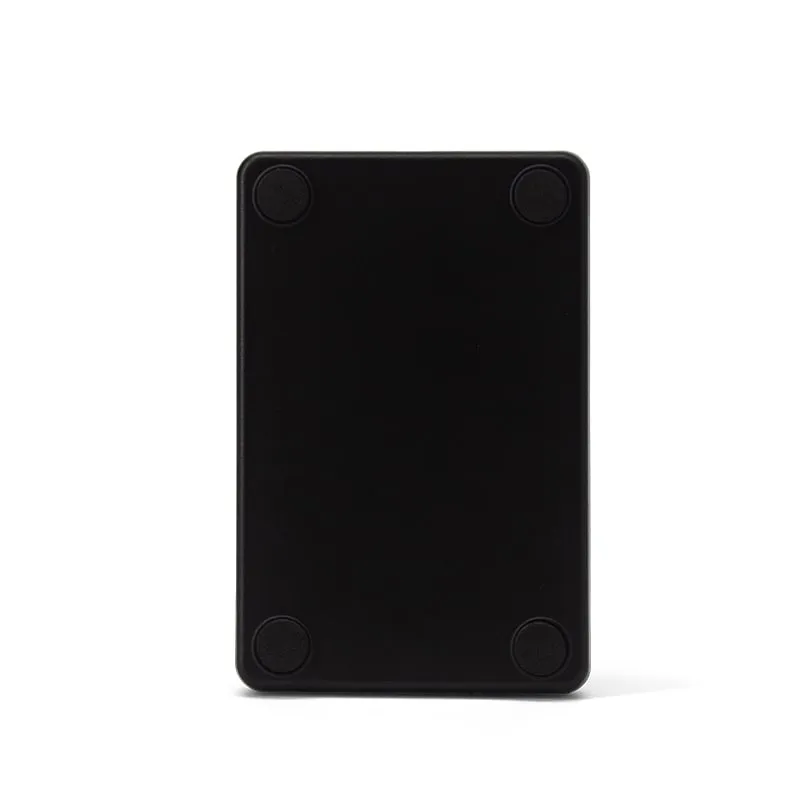 125kHz
  13.56MHz
 H110-U
13.56MHz USB NFC / MIFARE Card Reader, Slim Pad, No Driver
- USB
- Desktop
Read range: Up to 80 mm
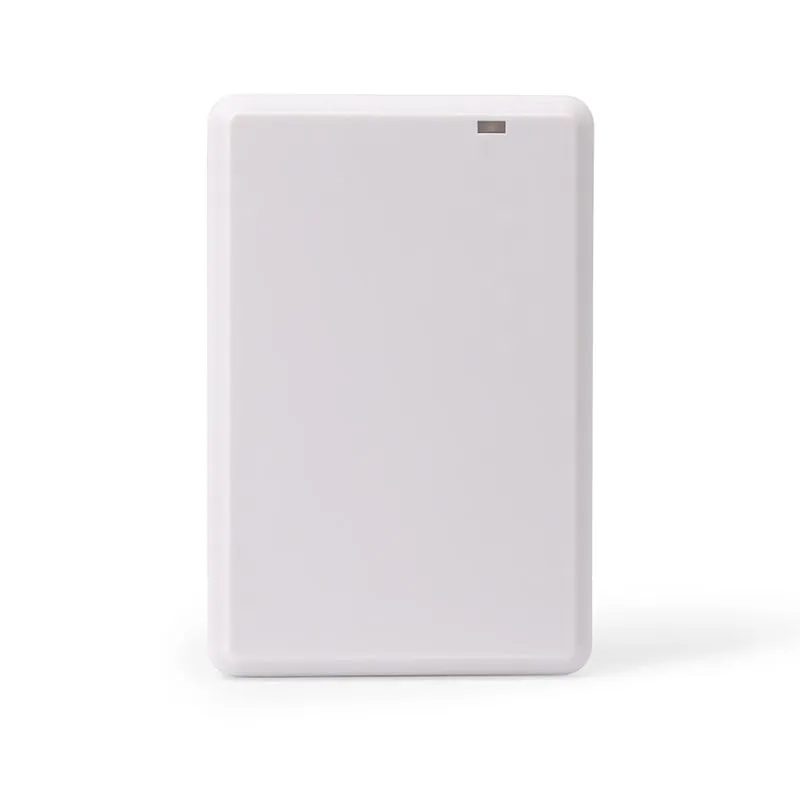 UHF
UHF 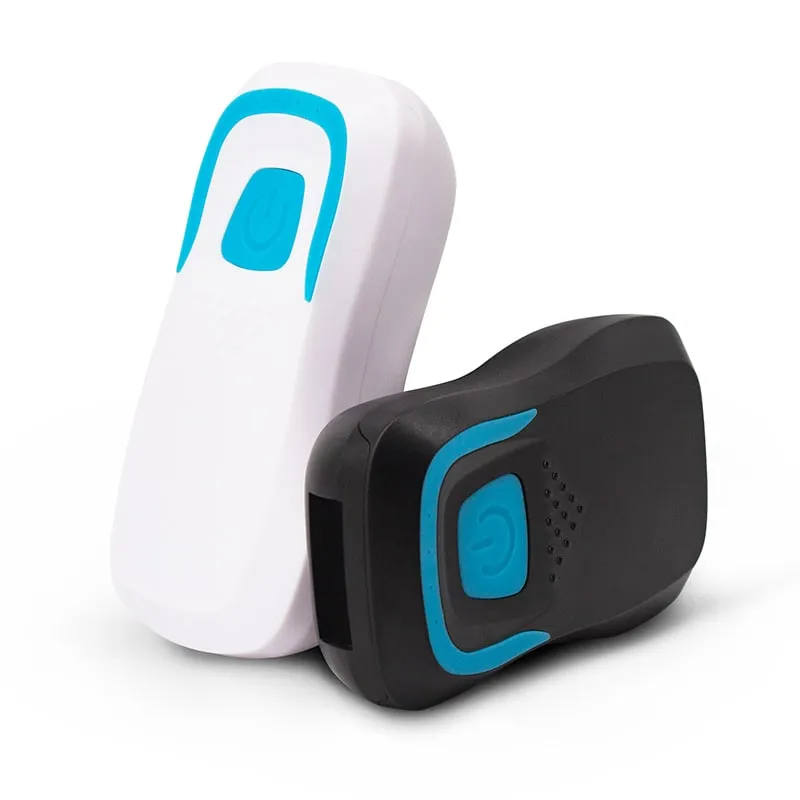 13.56MHz
 H510-B+2 variants
Bluetooth RFID Card Reader, 13.56MHz NFC / 125kHz, Pocket
- Wireless
- Handheld
Read range: 20–60 mm