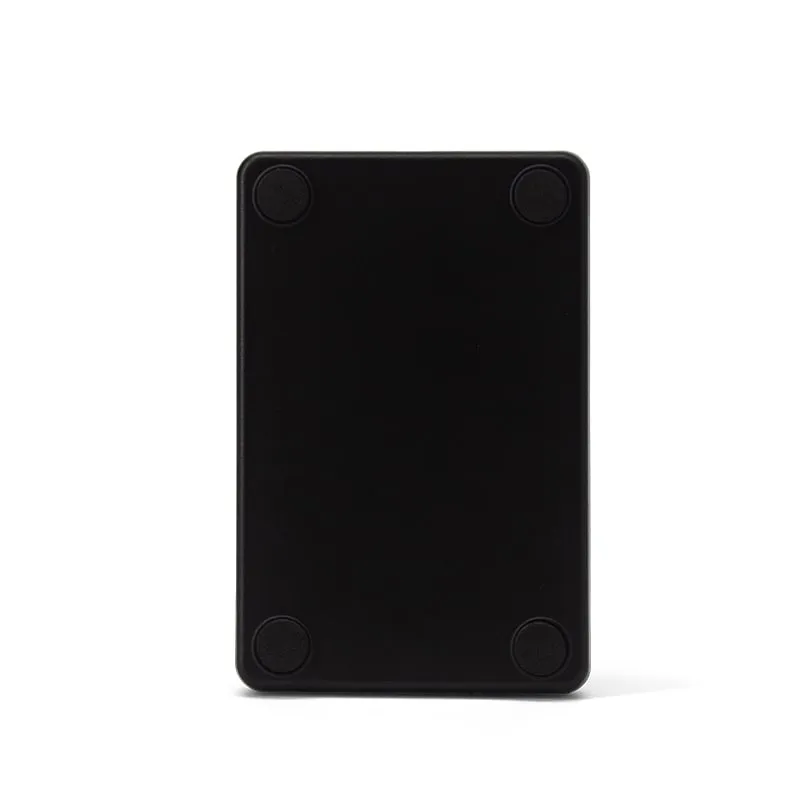
 125kHz
 RFID readers
Keyboard Wedge RFID & NFC Readers: USB, Bluetooth and USB-C
Keyboard wedge RFID readers act like a keyboard: present a card or tag and its number is typed wherever the cursor is — Excel, a web form, a POS screen or your own software. No driver, no SDK, over USB, Bluetooth or USB-C.
125kHz 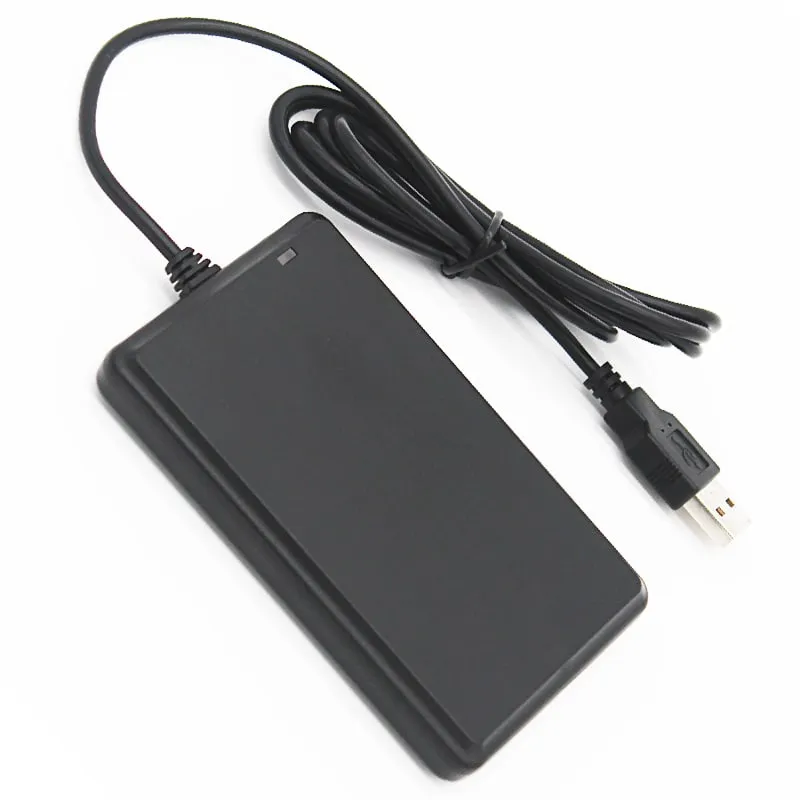 125kHz
  125kHz
 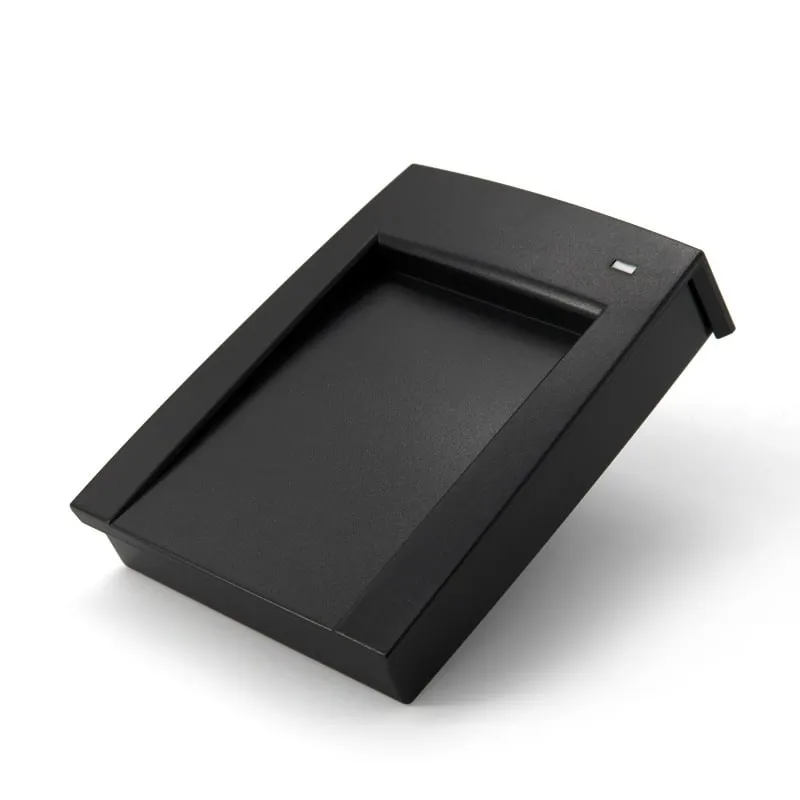 125kHz
 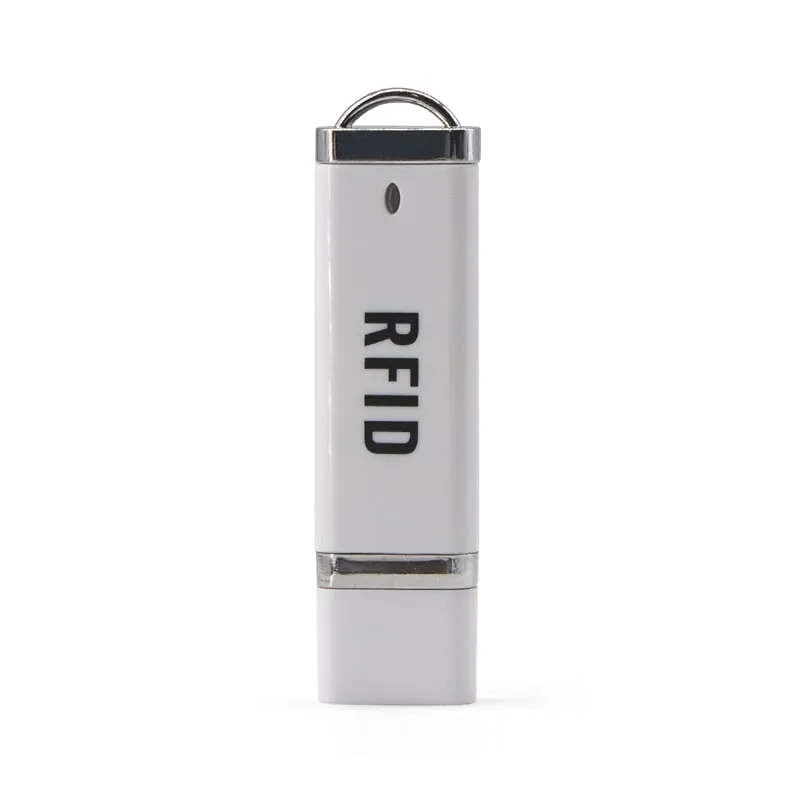 125kHz
 Photos on request
125kHz 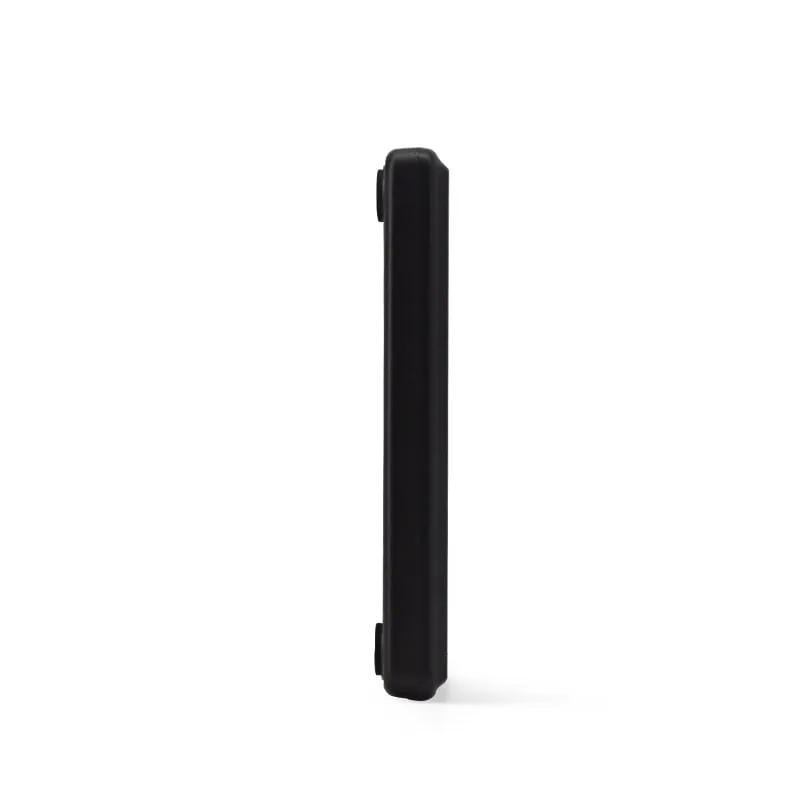 13.56MHz
 H110-U
13.56MHz USB NFC / MIFARE Card Reader, Slim Pad, No Driver
- USB
- Desktop
Read range: Up to 80 mm
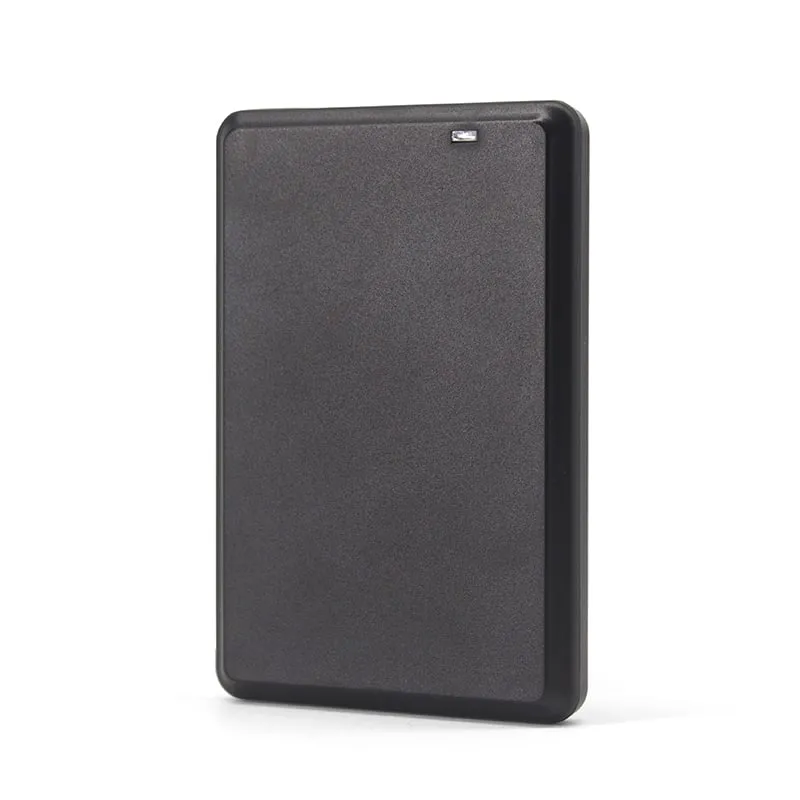 13.56MHz
 H120-U
13.56MHz USB NFC Reader, Flat Desktop Pad for MIFARE Cards
- USB
- Desktop
Read range: Up to 80 mm
13.56MHz 13.56MHz Photos on request
13.56MHz H310-U
13.56MHz NFC Card Reader with Numeric Keypad, USB
- USB
- Keypad
Read range: Cards up to 50 mm (about 30 mm for consistent reads)
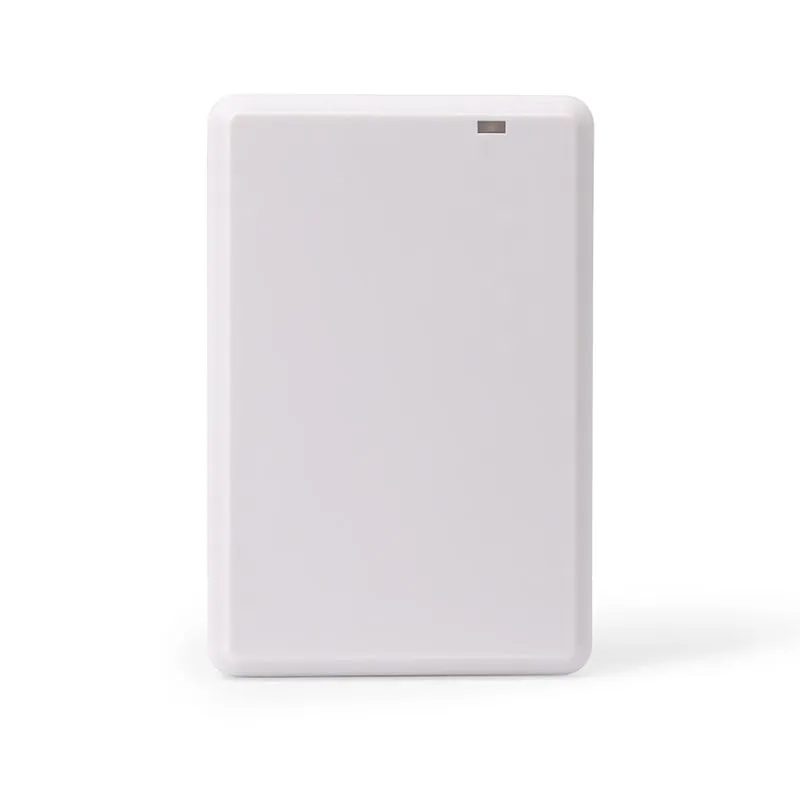 UHF UHF
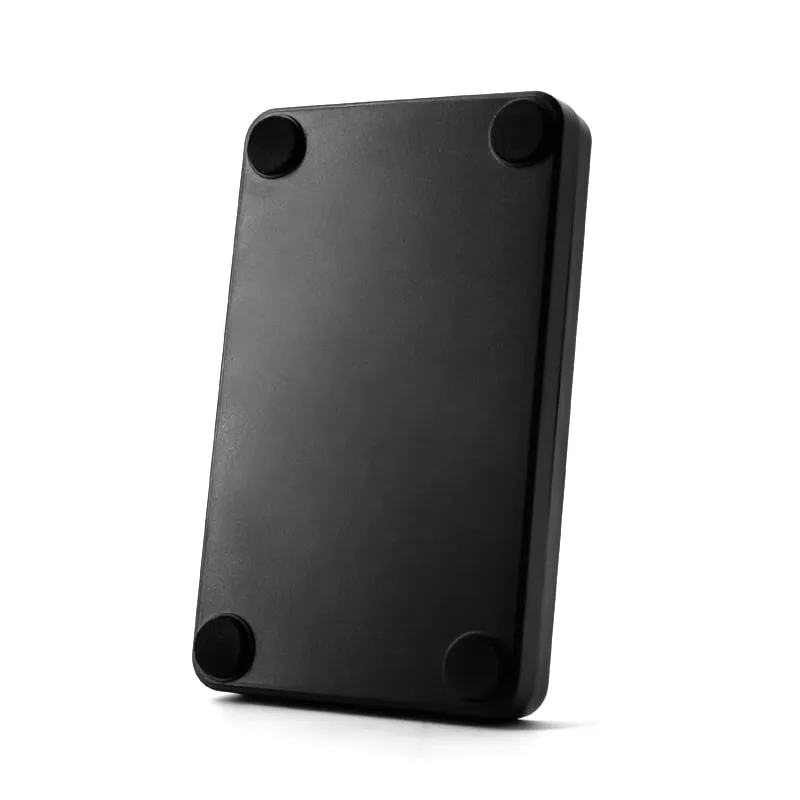
 U130-U
UHF RFID Desktop Reader/Writer, USB, Glossy Light-Ring Pad
- USB
- Desktop
Read range: Up to 0.5 m
 UHF
UHF Photos on request
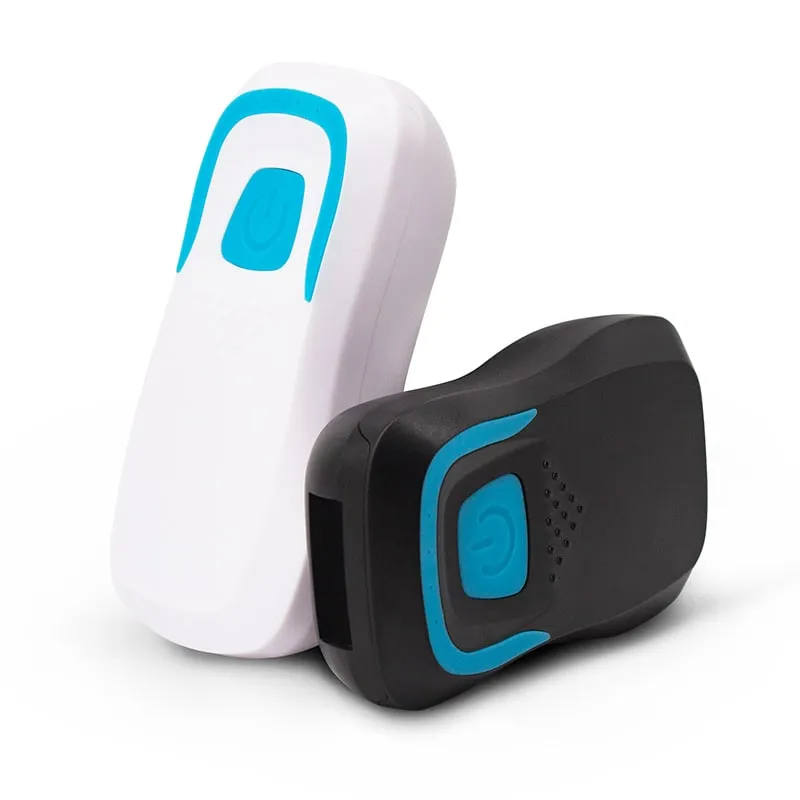
UHF U160-U
UHF RFID Desk Reader/Writer, USB, EPC Gen2, Square Housing
- USB
- Desktop
Read range: Up to 0.5 m
 13.56MHz
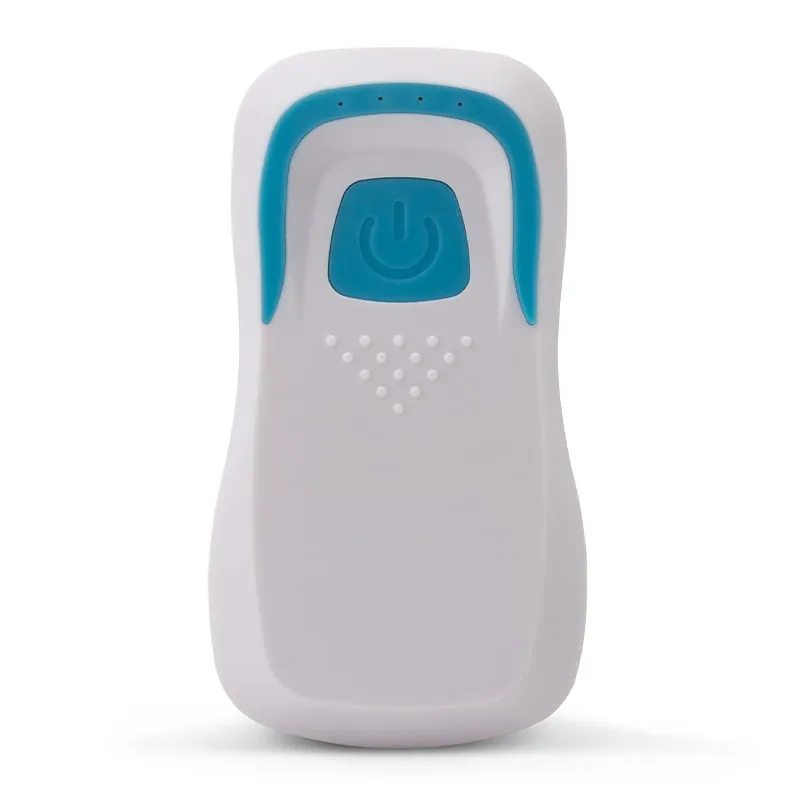
 H510-B+2 variants
Bluetooth RFID Card Reader, 13.56MHz NFC / 125kHz, Pocket
- Wireless
- Handheld
Read range: 20–60 mm
 UHF
UHF 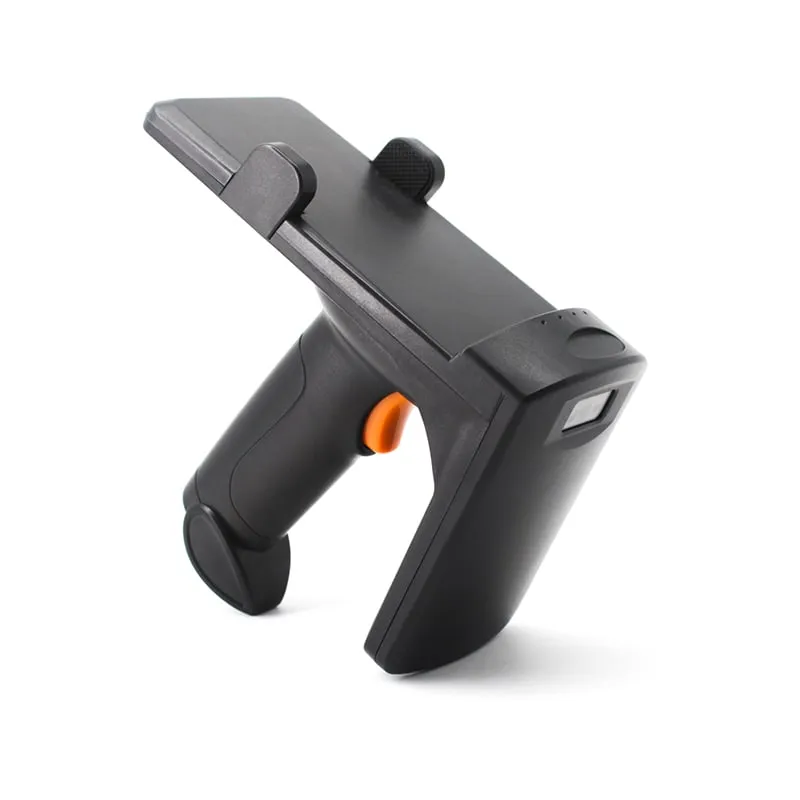 UHF
UHF U550-M
Bluetooth UHF RFID Pistol-Grip Reader with Phone Holder
- USB
- Wireless
- Handheld
Read range: 0–3 m
 13.56MHz
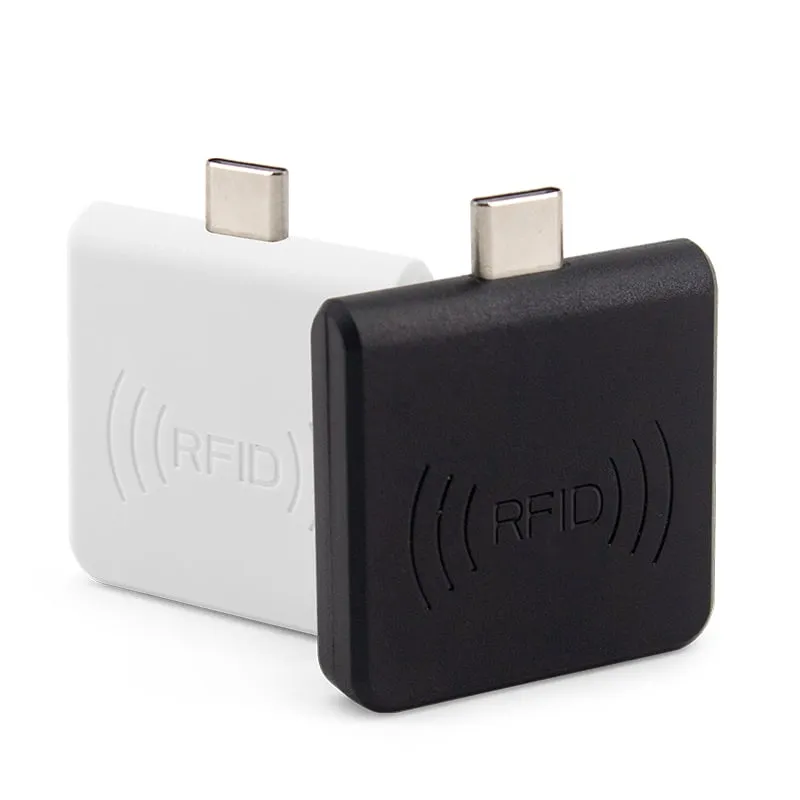
 H220-C
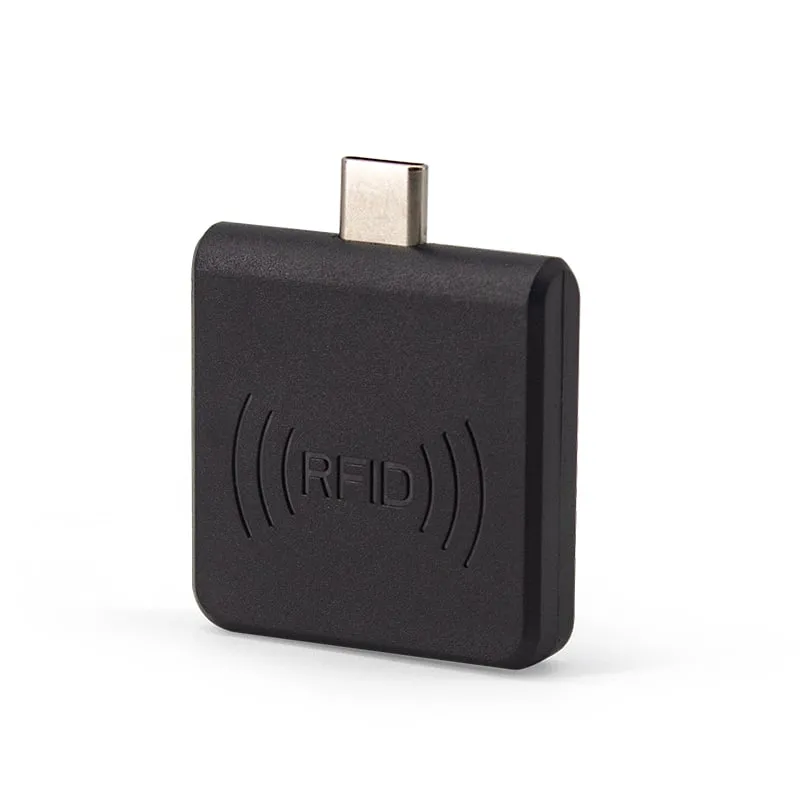
USB-C 13.56MHz NFC Reader for Android Phones, MIFARE UID
- USB
- Plug-in
Read range: 0–30 mm front and back, 0–10 mm from the side
 125kHz
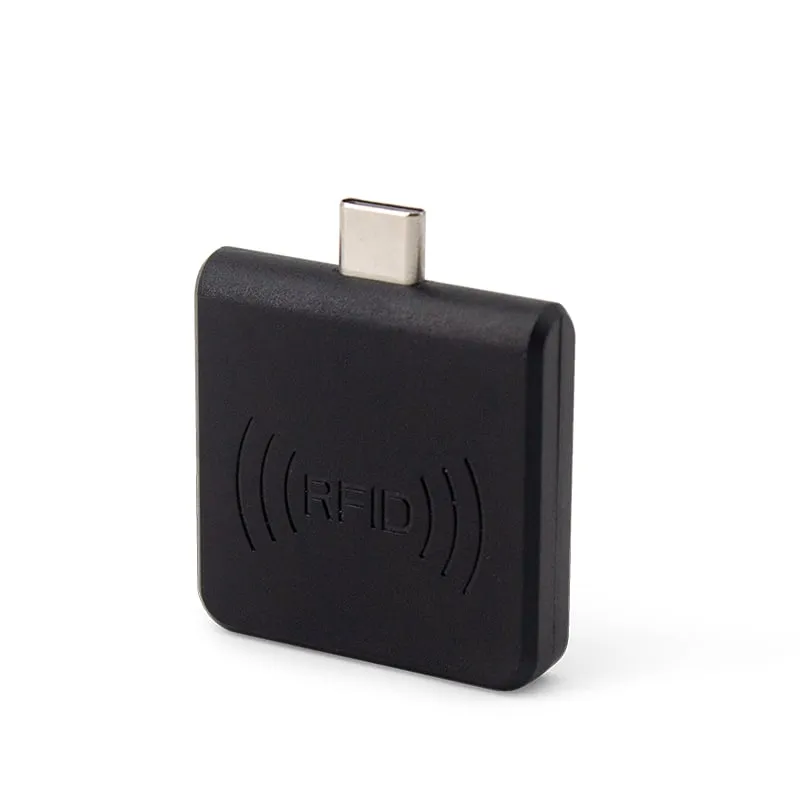
 L220-C
USB-C 125kHz EM4100 RFID Reader for Android Phones
- USB
- Plug-in
Read range: 0–30 mm front and back, 0–10 mm from the side
 UHF 134.2kHz
  134.2kHz
  134.2kHz
  QR + RFID
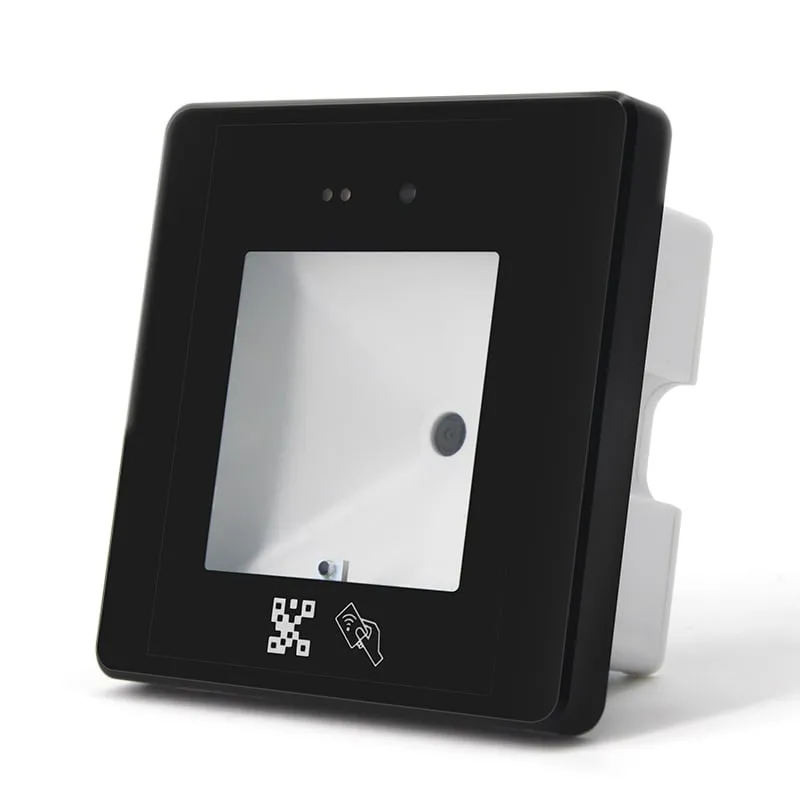
 Q430-M
QR Code + RFID Access Reader with USB, Wiegand and RS485, 86-Box
- USB
- RS232
- RS485
- Wall-mount
Read range: 3–6 cm
 Magstripe
 A keyboard wedge RFID reader, also sold as a USB RFID reader with keyboard emulation, identifies itself to the host as a keyboard. When a card or tag is presented, the reader types its number at the cursor, exactly as a person would. Any program that accepts typed text can take the number: Excel, a browser form, a POS screen, an attendance or membership system. Nothing is installed and nothing has to be coded.
This page groups the Henrium readers that deliver data as keyboard input: 125 kHz and 13.56 MHz USB desktop readers, USB sticks and keypad readers, Bluetooth pocket readers, UHF desktop reader/writers and a UHF pistol-grip handheld, USB-C plug-ins for Android phones, 134.2 kHz animal tag readers, a QR code and card reader, and a magnetic stripe reader.
Typical buyers are software vendors who want a reader their customers can plug in without a support call, access-control installers enrolling cards into a database, and membership, attendance and livestock operations. The deciding factors are the card or tag technology, the host (PC, Android phone, iPhone or tablet), the number format your software expects, and whether a number is all you need. The 125 kHz and 13.56 MHz readers here are read-only: they output the card ID (UID) and do not read data blocks or write cards.
Model comparison
Every model below sends data as keyboard input over USB, Bluetooth or USB-C. Default output formats differ by model, so check the product page or ask for a custom format.
| Model | Frequency | Interface | Form factor | Read range |
|---|---|---|---|---|
| L110-U | 125 kHz | USB | Desktop | Up to 80 mm |
| L120-U | 125 kHz | USB | Desktop | Up to 80 mm |
| L130-U | 125 kHz | USB | Desktop | 0–80 mm |
| L150-U | 125 kHz | USB | Desktop | Up to 80 mm |
| L210-U | 125 kHz | USB | Plug-in | Up to 80 mm |
| L310-U | 125 kHz | USB | Keypad | Up to 50 mm |
| H110-U | 13.56 MHz | USB | Desktop | Up to 80 mm |
| H120-U | 13.56 MHz | USB | Desktop | Up to 80 mm |
| H130-U | 13.56 MHz | USB | Desktop | 0–80 mm |
| H210-U | 13.56 MHz | USB | Plug-in | Up to 80 mm |
| H310-U | 13.56 MHz | USB | Keypad | Cards up to 50 mm |
| U120-U | 902–928 MHz or 920–925 MHz | USB | Desktop | Up to 0.5 m |
| U130-U | 902–928 MHz or 920–925 MHz | USB | Desktop | Up to 0.5 m |
| U140-U | 902–928 MHz or 920–925 MHz | USB | Desktop | Up to 0.5 m |
| U160-U | 902–928 MHz or 920–925 MHz | USB | Desktop | Up to 0.5 m |
| H510-B | 13.56 MHz | Wireless | Handheld | 20–60 mm |
| U510-B | 915 MHz | Wireless | Handheld | 0–50 cm |
| U550-M | 915 MHz | USB, Wireless | Handheld | 0–3 m |
| H220-C | 13.56 MHz | USB | Plug-in | 0–30 mm front and back, 0–10 mm from the side |
| L220-C | 125 kHz | USB | Plug-in | 0–30 mm front and back, 0–10 mm from the side |
| U220-C | 902–928 MHz | USB | Plug-in | 0–5 cm |
| A110-U | 134.2 kHz / 125 kHz | USB | Desktop | 0–150 mm |
| A140-U | 134.2 kHz / 125 kHz | USB | Desktop | 0–150 mm |
| A220-C | 134.2 kHz / 125 kHz | USB | Plug-in | 0–30 mm |
| Q430-M | 125 kHz / 13.56 MHz | USB, RS232, RS485, Wiegand | Wall-mount | 3–6 cm |
| M170-U | USB | Desktop | — |
How to choose a keyboard wedge RFID reader
Pick the row that matches your card or tag first, then the connection your host has.
| Card or tag | Models | Default output | Connection |
|---|---|---|---|
| 125 kHz EM4100 / TK4100 cards and fobs | L110-U, L120-U, L130-U, L150-U (desktop), L210-U (stick), L310-U (keypad), L220-C (USB-C) | 10-digit decimal (L130-U: custom format, default to be confirmed) | USB or USB-C OTG |
| 13.56 MHz MIFARE Classic / NTAG UID | H110-U, H120-U, H130-U (desktop), H210-U (stick), H310-U (keypad), H220-C (USB-C) | 10-digit decimal UID (H130-U: custom format, default to be confirmed) | USB or USB-C OTG |
| 13.56 MHz or 125 kHz, wireless | H510-B Bluetooth NFC pocket reader (125 kHz version: L510-B) | 8-digit hex; 10-digit decimal configurable | Bluetooth or 2.4G USB receiver |
| UHF EPC Gen2 tags | U120-U, U130-U, U140-U, U160-U (desktop), U510-B (pocket), U550-M (pistol grip), U220-C (USB-C) | Tag data typed at the cursor (U220-C: EPC number); U510-B format adjustable | USB, Bluetooth, 2.4G or USB-C OTG |
| 134.2 kHz FDX-B and 125 kHz EMID animal tags | A110-U, A140-U (desktop), A220-C (USB-C) | Tag number typed at the cursor; confirm the digit format on a sample | USB or USB-C OTG |
| QR codes plus EM / MIFARE cards | Q430-M QR code and RFID reader | USB keyboard or virtual COM | USB, plus Wiegand and RS232/RS485 |
| Magnetic stripe, tracks 1/2/3 | M170-U 3-track USB magstripe reader | Selected tracks | USB |
Not sure whether your card is 125 kHz or 13.56 MHz? See 125 kHz vs 13.56 MHz, or send a photo of the card with your RFQ.
HID keyboard vs virtual COM vs SDK
A reader can hand data to a computer in three ways. Each suits different software, so choose on purpose.
- USB HID keyboard (keyboard wedge). The reader enumerates as a standard USB keyboard, so the operating system's own driver handles it. Data goes wherever the cursor is, and it works with any program. The limits: the right field must have focus, the host keyboard layout must match what the reader sends, your software cannot tell a card read from typing, and the link is one-way — the application cannot send commands to the reader.
- Virtual COM port. The reader appears as a serial port; your application opens the port and reads the bytes, with or without focus. On this page it is offered on the UHF desktop reader/writers as a customized build and on the USB port of the Q430-M. The 125 kHz and 13.56 MHz USB readers here are keyboard-only; for serial output with those cards, use the RS232 models.
- SDK or PC/SC. None of the 125 kHz or 13.56 MHz readers on this page is a PC/SC or CCID device, and no SDK is documented for them. They cannot read MIFARE sectors, NDEF records or other card memory. If your application needs that, describe the card and the data in your RFQ and we will confirm whether a suitable model is available.
Setup steps and a full comparison are in what is a keyboard wedge.
Output formats and reading card numbers into Excel
Most 125 kHz and 13.56 MHz models type a 10-digit decimal number: a 32-bit (4-byte) card number written in decimal and padded with leading zeros. On an EM4100 card that is the last 4 of its 5 ID bytes; on a MIFARE Classic card it is the 4-byte UID. The H510-B Bluetooth pocket reader defaults to 8-digit hexadecimal (4 bytes in hex), with 10-digit decimal and 10-digit hex as options; see how an EM4100 or TK4100 card ID becomes a number. The keypad readers (L310-U, H310-U) send the number followed by Enter, and the Bluetooth readers (H510-B, U510-B, U550-M) and the U220-C append Enter by default. If your software expects another format, ask for a custom output format; it is confirmed in your quotation.
The number a reader types does not always match the number printed on the card. Printed numbers are often in another base or split into a facility code and card number. Check with the card number converter, and see RFID card number formats for how 10-digit decimal, 8-digit hex and Wiegand 26 relate.
To collect numbers in Excel, format the target column as Text first; otherwise Excel drops the leading zeros from a number such as 0004521873. Click the first cell and present the card. On readers that send Enter, the cursor moves down one row after each read. The full walk-through is in how to read RFID card numbers into Excel.
Phones, Bluetooth, keypads and other card types
- Android phones: the H220-C 13.56MHz USB-C NFC reader, L220-C 125kHz USB-C EM4100 reader, U220-C USB-C UHF reader and A220-C USB-C FDX-B reader plug into the USB-C port and type into any app. The phone must support USB OTG; see the OTG checklist.
- iPhone, iPad and laptops: the Bluetooth readers pair without a password and work as a keyboard on iOS, Android and Windows. The H510-B USB cable is for charging only; data goes over Bluetooth or the 2.4G receiver. The U550-M UHF pistol-grip handheld adds a phone holder and a rated 0–3 m UHF read range.
- Counters with data entry: L310-U 125kHz keypad reader and H310-U 13.56MHz NFC keypad reader combine a reader with a numeric keypad (0–9, F1–F5, Esc, Clear, Enter) for membership and POS desks. See POS and membership and time and attendance.
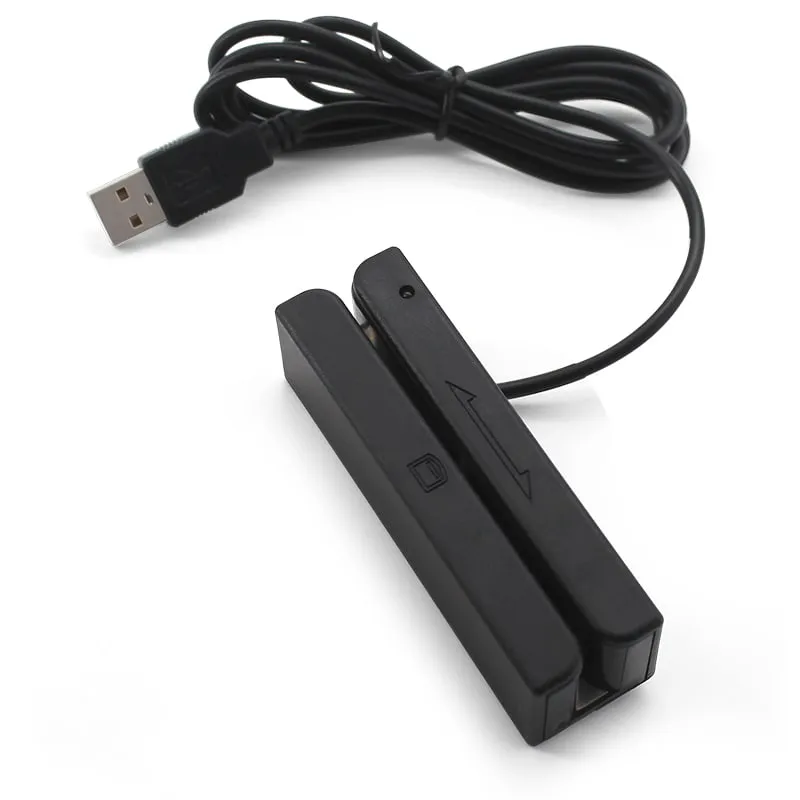
- Animal tags, QR codes and magnetic stripes: A110-U and A140-U read 134.2 kHz FDX-B and 125 kHz EMID tags at up to 150 mm. An FDX-B number has 15 digits (a 3-digit country or manufacturer code plus a 12-digit ID), so check on a sample that the typed output carries all the digits your registry stores; see how the 15-digit animal ID is built. Q430-M reads QR codes plus EM and MIFARE cards. M170-U reads tracks 1, 2 and 3 of membership, hotel, ID and attendance cards; see magnetic stripe tracks explained.
Frequently asked questions
What is a keyboard-wedge RFID reader?
It is a reader that presents itself to the computer as a keyboard. When you present a card, it types the card number at the cursor, and some models press Enter after it. Any program that accepts typed text can use it without a driver or SDK.
Do keyboard-emulation readers need a driver?
No. The USB models use the standard USB keyboard class and the Bluetooth models pair as a keyboard-type device, so the host's built-in keyboard support is enough. If digits come out wrong or scrambled, set the host input language to an English (US) keyboard layout and try again.
How do I read RFID card numbers into Excel?
Format the column as Text so leading zeros are kept, click the first cell and present the card. The number is typed into the cell; on readers that send Enter, the cursor moves to the next row. Step-by-step instructions are in reading RFID card numbers into Excel.
Why doesn't the number match the one printed on my card?
The printed number may be in hex, in a different byte order, or split into a facility code and card number, while the reader types 10-digit decimal (8-digit hex by default on the H510-B). Compare both in the card number converter. If your system needs a different format, a custom output format is confirmed in your quotation.
Can a keyboard-emulation reader write cards or read MIFARE data blocks?
No. The 125 kHz, 13.56 MHz and 134.2 kHz readers here read the ID only. The UHF desktop reader/writers (U120-U, U130-U, U140-U, U160-U) list tag writing up to 0.2 m, but keyboard mode only sends data out, so writing needs separate software; confirm it in your quotation.
Do these readers work with Android phones and iPhones?
On Android, use a USB-C model (the phone must support OTG) or a Bluetooth model. On iPhone and iPad, use a Bluetooth reader: H510-B, U510-B and U550-M list iOS support. The USB-C plug-ins are specified for Android.
Tell us your card, interface and quantity
Send the card or tag type, the host system and your volume. We reply within 1 business day with a suggested model and sample options.