Integration & setup
RFID Reader to Excel: How to Read Card Numbers into a Spreadsheet (No Coding)
By Henrium · · 9 min read
Quick answer
Use a keyboard-emulation RFID reader. It types each card number into the selected Excel cell like a keyboard, often followed by Enter. Format the column as Text before the first read so leading zeros survive, then add a timestamp, a name lookup and a duplicate check. No driver, add-in or code is required.
You can read RFID card numbers into Excel with no software, no add-in and no code. A keyboard-emulation (keyboard-wedge) reader types each card number into the selected cell exactly as if someone had typed it. When the reader also sends Enter, the cursor drops to the next row, ready for the next card.
The real work is preparing the sheet: keeping leading zeros, stamping the time of each read, matching numbers to names and flagging repeats. This guide walks through the setup in Excel for Windows or Mac. The same steps work in Google Sheets and LibreOffice Calc, and on an Android phone or iPad with a plug-in or Bluetooth reader.
What you need
| Item | What to check |
|---|---|
| RFID reader with keyboard output | Same frequency as your cards: 125 kHz for EM4100/TK4100, 13.56 MHz for MIFARE Classic or NTAG. See keyboard-emulation readers. |
| A few known cards | Ideally with the number printed, so you can compare |
| Computer, phone or tablet | A free USB port, a USB-C port with OTG, or Bluetooth. Each product page lists the operating systems that model is specified for. |
| Spreadsheet | Excel, Google Sheets or LibreOffice Calc |
| Optional | A macro-enabled workbook (.xlsm) for automatic timestamps |
Step 1: Match the reader to your cards
When a reader does nothing at all, the usual reason is a frequency mismatch. A 125 kHz reader cannot read a 13.56 MHz card, and the reverse is also true. Cards printed with a 10-digit number and a pair such as 107,12109 are usually 125 kHz EM4100-compatible cards, read by 125kHz EM4100 USB readers. An NFC-enabled Android phone reacts to most 13.56 MHz cards and ignores 125 kHz ones, which makes a quick field test; cards that react need a 13.56MHz MIFARE and NFC reader. The 125 kHz vs 13.56 MHz guide covers this in detail.
For 125 kHz EM4100 cards and fobs, the L110-U 125kHz USB EM4100 reader is a slim desktop pad (104 × 68 × 10 mm) with a 1400 mm USB cable. For 13.56 MHz MIFARE Classic cards, the H110-U 13.56MHz USB MIFARE reader uses the same housing. Both read up to 80 mm and type a 10-digit decimal number by default. NTAG and Ultralight tags carry a 7-byte UID that a 4-byte default format cannot show in full, so read the MIFARE and NTAG compatibility guide before you order for those tags.
Step 2: Test the reader in a text editor
- Plug the reader into a USB port. No driver is needed; the computer sees an extra keyboard.
- Open Notepad or TextEdit and click in the window.
- Present a card. The number appears, and the reader beeps and changes its LED color.
- Note two things: the exact digits, and whether the cursor jumps to a new line. A new line means the reader sends Enter.
If the characters look wrong (for example àààè instead of digits), the computer’s keyboard layout is the cause. Set the input language to English (US); the keyboard-wedge guide explains why.
Step 3: Prepare the worksheet
- Type headers in row 1: Card number, Time, Name, Repeat.
- Select column A and set it to Text: Home > Number Format > Text (or Ctrl+1 > Number > Text). Do this before the first read. Excel does not convert existing entries when you change the format afterwards.
- Select the four header cells and press Ctrl+T, with “My table has headers” ticked. In an Excel Table, formulas in the Time, Name and Repeat columns fill down automatically as rows are added.
- Check where Enter moves the cursor: File > Options > Advanced > “After pressing Enter, move selection” should be set to Down. On a Mac, the setting is under Excel > Settings (Preferences in older versions) > Edit.
Why Text matters: Excel converts anything that looks like a number, and card numbers are identifiers, not quantities.
| Reader types | In a General column Excel shows | In a Text column |
|---|---|---|
0007024461 (10-digit decimal) |
7024461 | 0007024461 |
12345E67 (8-digit hex) |
1.2345E+71 | 12345E67 |
0128856043341 (13-digit decimal) |
1.28856E+11 | 0128856043341 |
1229366394379648 (7-byte UID in decimal) |
1.22937E+15, stored as 1229366394379640 | 1229366394379648 |
The last row shows Excel’s 15-significant-digit limit: any digits beyond the 15th are replaced with zeros and cannot be recovered.
Step 4: Read cards into the sheet
Click cell A2 and present the first card. The number appears and, if the reader sends Enter, the cursor moves to A3. Present the next card.
Keep the Excel window in front. A keyboard reader types wherever the cursor is, so a chat window or browser that takes focus will receive the next number instead. If your reader does not send Enter, press Enter after each read yourself; otherwise the next number is appended to the same cell. The keypad readers (L310-U, H310-U) and the H510-B Bluetooth reader send Enter after the number by default; for other models, ask for an Enter suffix, confirmed in your quotation.
Step 5: Add a timestamp to every read
=NOW() on its own does not work: it recalculates whenever the sheet changes, so every row shows the current time. Use one of these methods.
| Method | How | Good for | Limits |
|---|---|---|---|
| Shortcut | On Windows, press Ctrl+; for the date, then a space and Ctrl+Shift+; for the time | Occasional reads at a staffed desk | One manual step per card |
| Formula | Enable iterative calculation (File > Options > Formulas), then in B2: =IF(A2="","",IF(B2="",NOW(),B2)) |
No macros | Re-entering or re-filling the formula resets the times |
| Macro | Paste the code below into the sheet module and save as .xlsm | Unattended logging on a desktop PC | Macros must be enabled; does not run in Excel for the web |
Format column B as yyyy-mm-dd hh:mm:ss to see seconds. For the macro, right-click the sheet tab, choose View Code and paste:
Private Sub Worksheet_Change(ByVal Target As Range)
    Dim c As Range
    If Intersect(Target, Me.Range("A:A")) Is Nothing Then Exit Sub
    On Error GoTo Done
    Application.EnableEvents = False
    For Each c In Intersect(Target, Me.Range("A:A")).Cells
        If c.Row > 1 And c.Value <> "" And c.Offset(0, 1).Value = "" Then
            c.Offset(0, 1).Value = Now
            c.Offset(0, 1).NumberFormat = "yyyy-mm-dd hh:mm:ss"
        End If
    Next c
Done:
    Application.EnableEvents = True
End Sub
Use either the formula or the macro in column B, not both.
Step 6: Match names and flag repeat reads
Create a second sheet named Cards with the card number in column A (formatted as Text) and the person or asset in column B. Then add to the log sheet:
- Name (C2):
=XLOOKUP(A2,Cards!A:A,Cards!B:B,"Unknown card")in Microsoft 365 or Excel 2021 and later. In older versions:=IFERROR(VLOOKUP(A2,Cards!A:B,2,FALSE),"Unknown card"). - Repeat (D2):
=IF(SUMPRODUCT(--($A$2:A2=A2))>1,"Repeat","")marks the second and later reads of the same card.
Both sheets must store card numbers the same way. The text 0007024461 does not match the number 7024461, a common reason for a lookup to return “Unknown card”. COUNTIF also works for 10-digit numbers. It converts number-like text and compares only 15 digits, however, so long IDs can show false repeats; the SUMPRODUCT version avoids that.
For a daily attendance view, insert a PivotTable with Name in rows and a count of Card number in values, filtered by date.
Convert the number inside Excel
If your printed cards, access-control software or database use a different format from the reader, convert in the sheet instead of re-reading every card. With the reader’s 10-digit decimal in A2:
| Goal | Formula | Example result |
|---|---|---|
| 10-digit decimal to 8-character hex | =DEC2HEX(A2,8) |
0007024461 → 006B2F4D |
| 8-character hex to 10-digit decimal | =TEXT(HEX2DEC(A2),"0000000000") |
006B2F4D → 0007024461 |
| Reverse the byte order of an 8-character hex | =MID(A2,7,2)&MID(A2,5,2)&MID(A2,3,2)&LEFT(A2,2) |
006B2F4D → 4D2F6B00 |
| Wiegand 26 facility code | =MOD(INT(A2/65536),256) |
0007024461 → 107 |
| Wiegand 26 card number | =MOD(A2,65536) |
0007024461 → 12109 |
| Restore lost leading zeros | =TEXT(A2,"0000000000") |
7024461 → 0007024461 |
HEX2DEC accepts up to 10 hex characters, but returns a negative number for values of 8000000000 and above; 8-character hex values are always safe. For what these formats mean, see RFID card number formats, or check a single card in the Wiegand 26/34 calculator.
Troubleshooting
| Symptom | Likely cause | Fix |
|---|---|---|
| Leading zeros missing | Column was General when the number was read | Set Text before reading; repair with =TEXT(A2,"0000000000") |
| Values like 1.2345E+71 | Hex number read as scientific notation | Set the column to Text and read again |
| Two numbers in one cell | Reader does not send Enter | Press Enter after each read, or order an Enter suffix |
| Cursor moves right instead of down | Reader sends Tab, or Enter direction is set to Right | Change the Enter direction setting |
| Symbols instead of digits | Non-US keyboard layout | Switch the input language to English (US) |
| Same card not logged twice | Card left on the reader | Lift it away and present it again |
| Number differs from the card print | Different number format | Compare both numbers in the card number converter |
| Nothing happens | Frequency mismatch or connection | Work through the troubleshooting checklist |
Google Sheets, phones and tablets
- Google Sheets: set the column to Format > Number > Plain text. The timestamp formula works after turning on File > Settings > Calculation > Iterative calculation. The VBA macro does not run in Sheets.
- LibreOffice Calc: use Format > Cells > Numbers > Text, and turn on Tools > Options > LibreOffice Calc > Calculate > Iterations for the timestamp formula. The formulas above work as written, apart from
XLOOKUPin older versions; use theVLOOKUPform there. - Android: plug-in USB-C readers such as the H220-C USB-C NFC reader (13.56 MHz) and the L220-C 125kHz USB-C reader type straight into the Excel or Sheets app. The phone must support USB OTG, and cards read at 0–30 mm face-on. See the OTG checklist.
- iPad and iPhone: use a Bluetooth reader. The H510-B Bluetooth card reader pairs without a password and appends Enter; its USB cable is for charging only.
Checklist: choosing a reader for spreadsheet logging
- Frequency and chip match your cards (see Step 1).
- Keyboard output, not RS232 only. RS232 readers need software to read the port.
- The output format matches the numbers you already hold: card print, access-control database or payroll system.
- Enter after each number, so reads land one per row.
- The right connection: USB-A, USB-C with OTG, or Bluetooth.
- The logging PC uses an English (US) input layout.
- A form factor that suits the desk: a slim pad, a USB stick, or a keypad reader where staff also key in a code.
- A sample tested with your own cards before a volume order: request samples.
When a spreadsheet stops being enough
A workbook suits one desk and a few hundred reads a day. Once several stations write to the same log, you need an audit trail, or cards must open doors, move to attendance or membership software. Most such software accepts keyboard input, so the same reader keeps working. See time and attendance and POS and membership for typical setups.
One last point: once card numbers are linked to names, the workbook holds personal data. Store and share it the way your privacy rules require.
Frequently asked questions
Why does Excel remove the leading zeros from my card numbers?
Excel treats 0007024461 as the number 7024461 and drops the zeros. Format the card-number column as Text before the first read. For numbers already stored without zeros, =TEXT(A2,"0000000000") restores a 10-digit value.
How do I add a timestamp automatically when a card is read?
Either enable iterative calculation and use =IF(A2="","",IF(B2="",NOW(),B2)) in the time column, or add a short Worksheet_Change macro and save the workbook as .xlsm. A plain =NOW() does not work, because it recalculates every time the sheet changes.
Can I read RFID cards into Google Sheets or LibreOffice Calc?
Yes. A keyboard-emulation reader types into any application. In Google Sheets, set the column to Format > Number > Plain text; in LibreOffice Calc, use Format > Cells > Numbers > Text. The formulas in this guide work in both, apart from the VBA macro and, in older LibreOffice versions, XLOOKUP.
Why do all my card numbers end up in one cell?
The reader is not sending Enter after each number, so Excel stays in edit mode and the next read is appended. Press Enter after each read, or ask for a reader output format that ends with Enter; this is confirmed in your quotation.
Does this work on an Android phone or iPad?
Yes, with the Excel or Google Sheets app. On Android, use a USB-C plug-in reader; the phone must support USB OTG. On iPad and iPhone, use a Bluetooth reader that pairs as a keyboard, such as the H510-B.
Readers mentioned in this guide
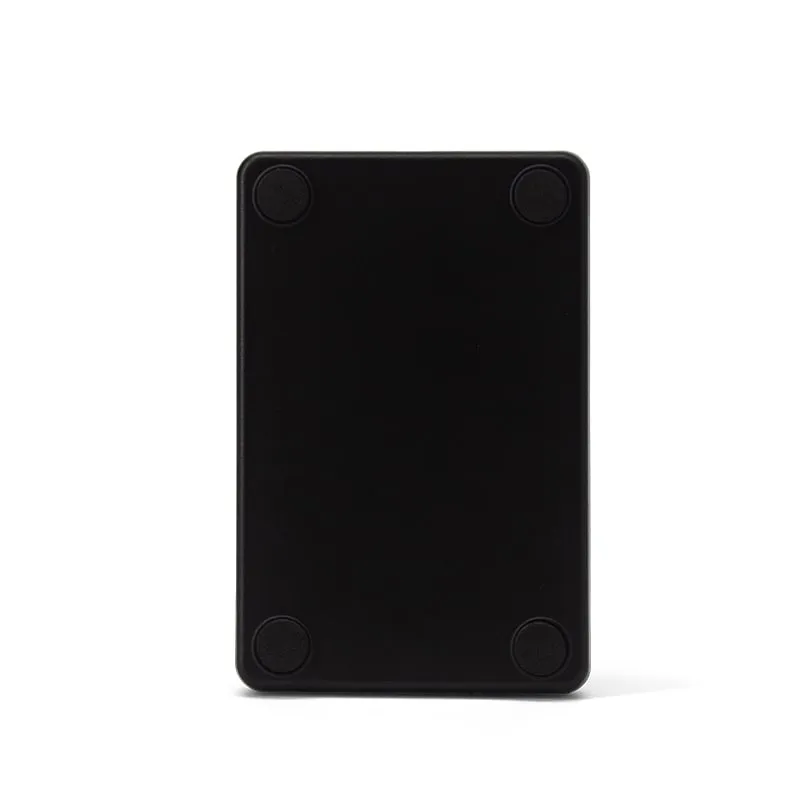 125kHz
  13.56MHz
 H110-U
13.56MHz USB NFC / MIFARE Card Reader, Slim Pad, No Driver
- USB
- Desktop
Read range: Up to 80 mm
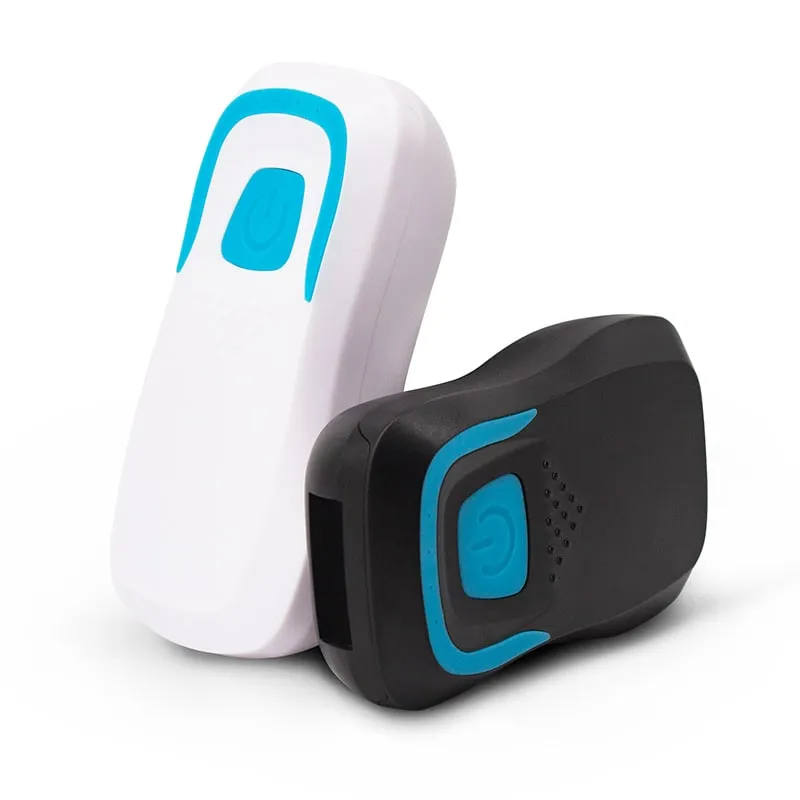 13.56MHz
 H510-B+2 variants
Bluetooth RFID Card Reader, 13.56MHz NFC / 125kHz, Pocket
- Wireless
- Handheld
Read range: 20–60 mm
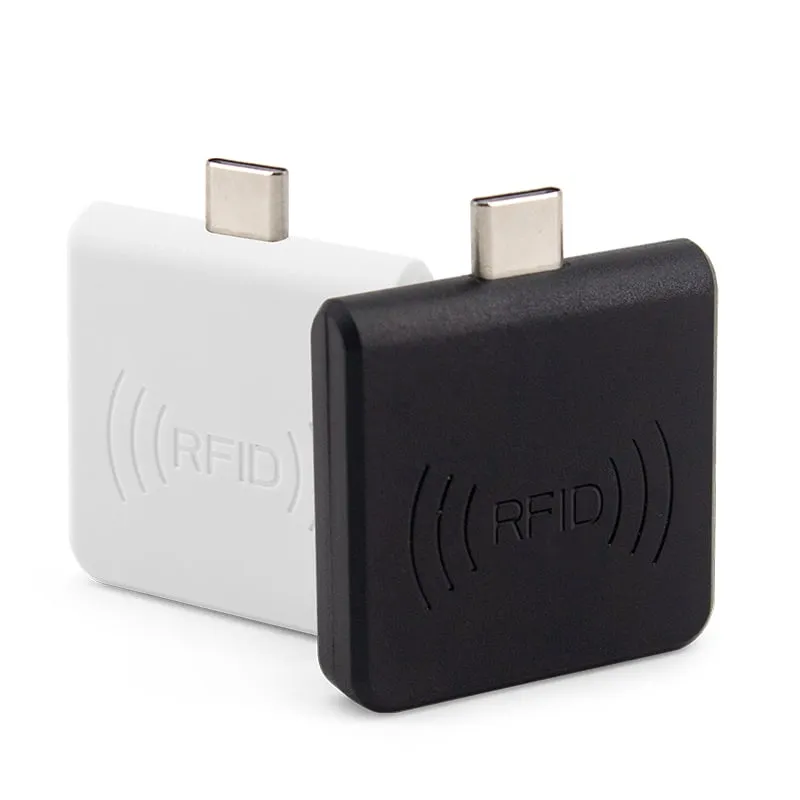 13.56MHz
 H220-C
USB-C 13.56MHz NFC Reader for Android Phones, MIFARE UID
- USB
- Plug-in
Read range: 0–30 mm front and back, 0–10 mm from the side