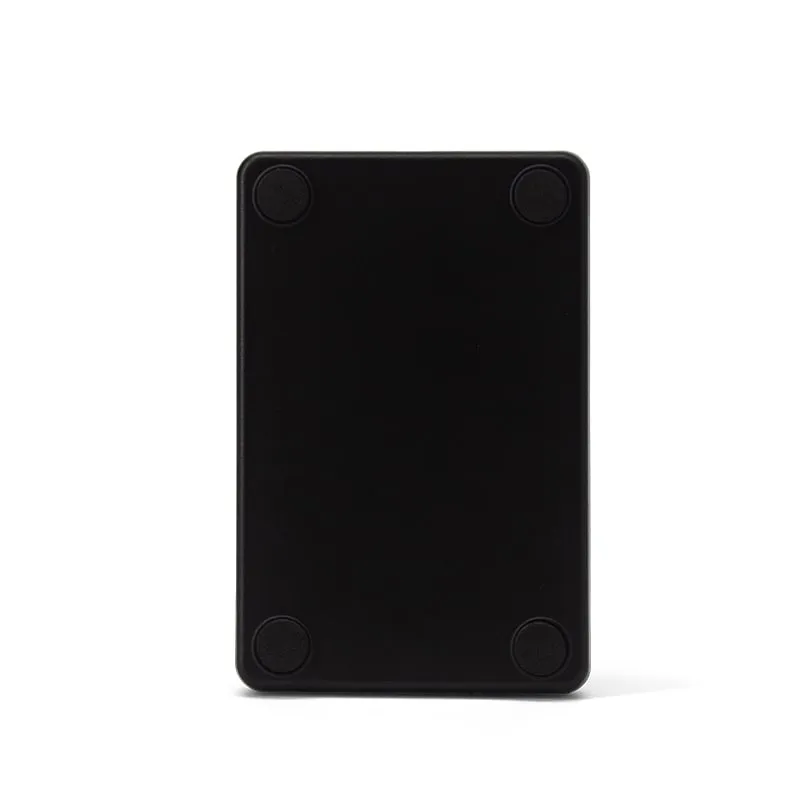
 125kHz
 Application
RFID Card Readers for Time & Attendance Systems
An attendance system needs one reliable ID at the moment someone arrives. Our USB, RS232, USB-C and Wiegand readers read 125 kHz or 13.56 MHz badges and hand the card number to your software, terminal or spreadsheet.
Typical system architecture
- 01
Badge
A staff or student card, key fob or tag: 125 kHz EM4100/TK4100 or 13.56 MHz MIFARE Classic/NTAG203. The reader uses the fixed ID already in the chip, so badges need no encoding.
- 02
Reader at the clock-in point
A USB pad on a front-desk PC, a USB-C reader on an Android tablet kiosk, or a Wiegand wall reader at the entrance reads the badge in under 200 ms.
- 03
Interface
USB keyboard emulation types the number at the cursor; RS232 sends a framed serial string (9600 bps default); Wiegand 26/34 sends pulses to a terminal or controller.
- 04
Attendance software
The host software matches the ID to a person and records the time stamp. Rosters, shift rules and payroll export stay in the software, not in the reader.
Recommended readers
125kHz Slim 104 × 68 × 10 mm USB pad that types the 10-digit number of EM4100/TK4100 badges into a web or desktop attendance screen. The LED turns from red (standby) to green and the buzzer sounds on each good read.
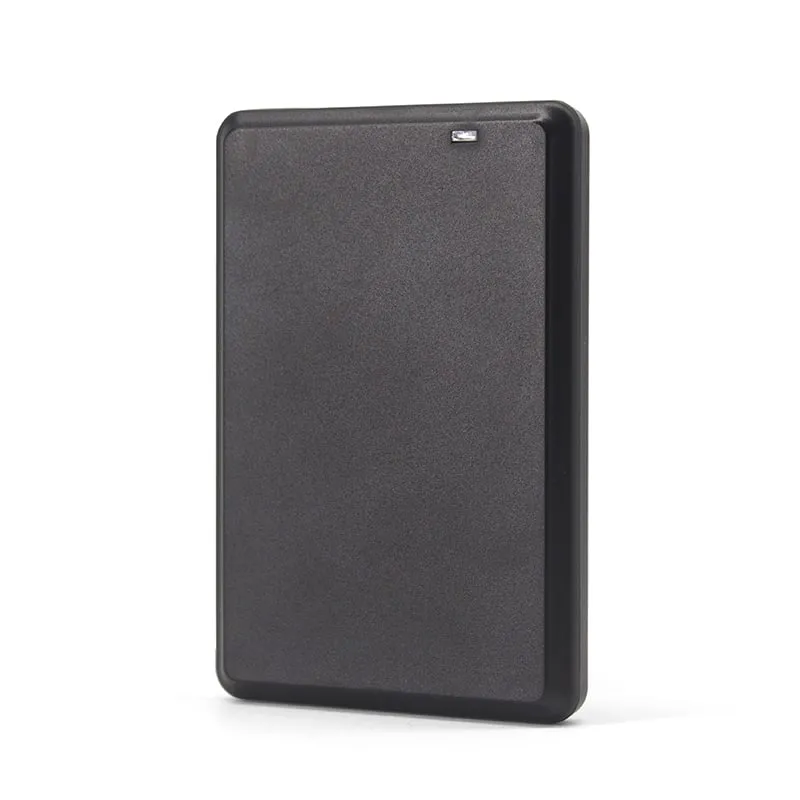 13.56MHz
 H120-U
13.56MHz USB NFC Reader, Flat Desktop Pad for MIFARE Cards
- USB
- Desktop
Read range: Up to 80 mm
Flat desktop pad for 13.56 MHz MIFARE Classic 1K/4K staff or student cards (NTAG203 is also listed). By default it types a MIFARE Classic card's 4-byte UID as a 10-digit decimal number, and the cable plugs into a mini-USB socket on the reader.
Photos on request
125kHz USB numeric keypad with a built-in 125 kHz reader, so staff can badge in and then key in a PIN or job code on the same device; each card read ends with Enter.
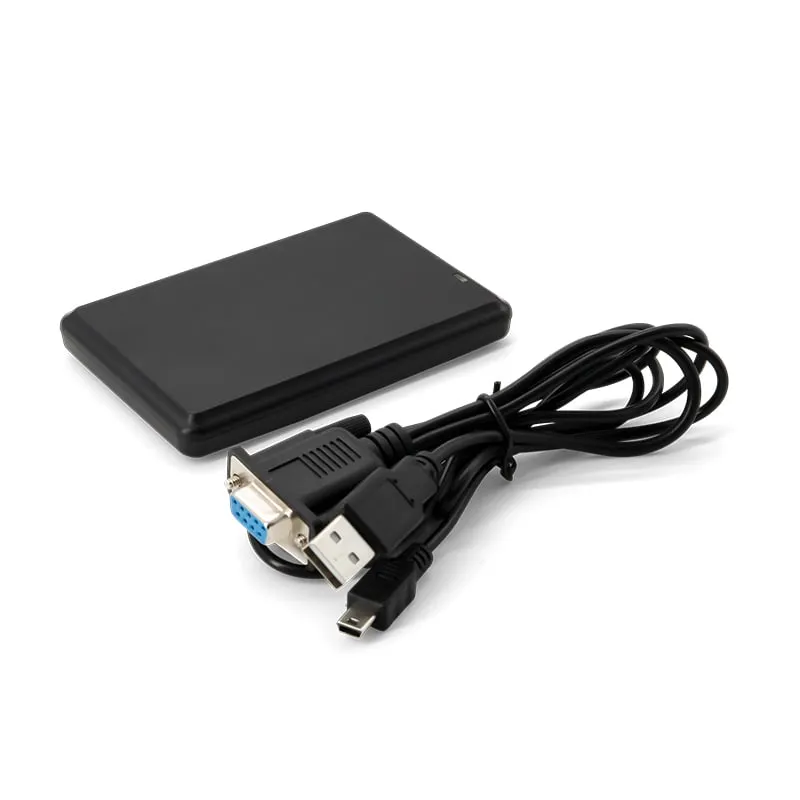 125kHz
 Flat 125 kHz desktop reader with an RS232 (DB9) cable for attendance terminals and embedded PCs that listen on a serial port. It sends each EM4100/TK4100 number in an STX/ETX frame at 9600 bps by default, with 19200 and 115200 selectable.
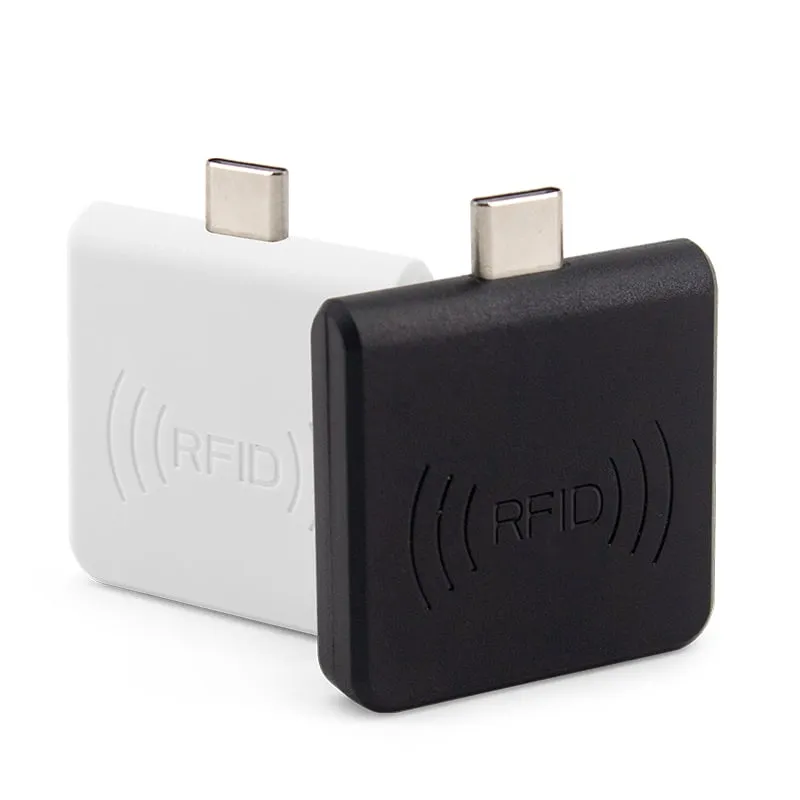 13.56MHz
 H220-C
USB-C 13.56MHz NFC Reader for Android Phones, MIFARE UID
- USB
- Plug-in
Read range: 0–30 mm front and back, 0–10 mm from the side
Plugs into the USB-C port of an OTG-capable Android tablet and types the MIFARE UID into the attendance app at the cursor, with no extra app to install.
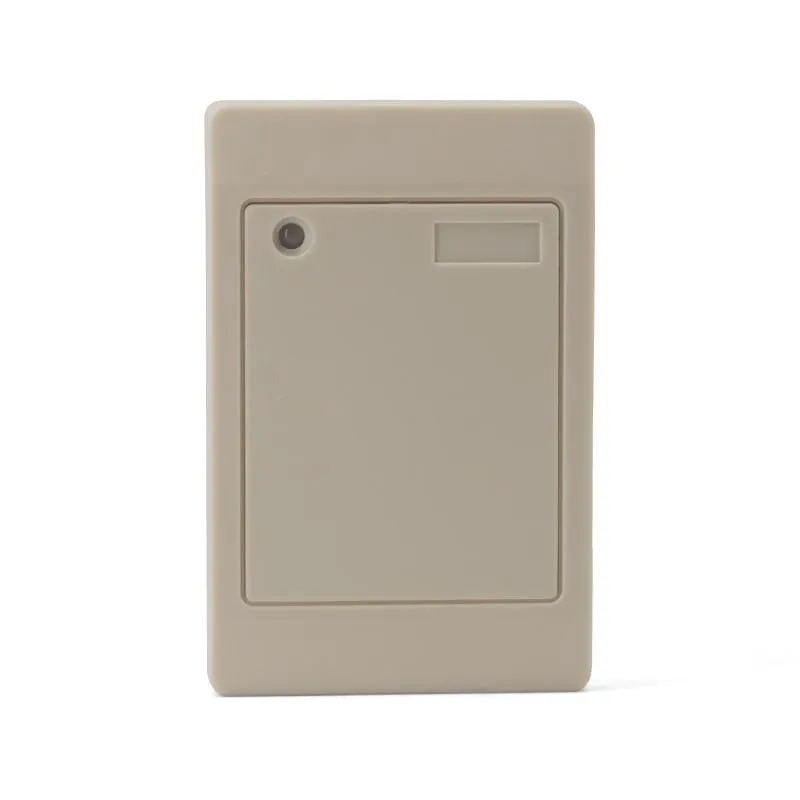 125kHz
 L410-W+2 variants
Waterproof 125kHz Wiegand 26/34 RFID Access Reader, Resin-Potted
- Wiegand
- Wall-mount
Read range: 0–100 mm
Wall reader for an entrance clock-in point that sends EM4100/TK4100 card numbers over Wiegand 26 or 34 to terminals or controllers with an external-reader input.
The problem: getting a clean ID into the attendance record
Paper sign-in sheets and typed employee numbers produce the same errors: wrong IDs, missing punches and queues at shift change or the start of class. Every one of them has to be corrected by hand before payroll or a school report can run.
Attendance software vendors and integrators also have a hardware problem. Their customers run the software on front-desk PCs, Android tablets, older terminals with a serial port, or wall terminals with a Wiegand input. Nobody wants to install drivers or write device code at every site, and a school or small office may have no one on hand to do it.
How RFID reading solves it
A staff or student badge carries a fixed ID number. The reader reads it in under 200 ms when the badge is presented and passes it to the host in one of three ways:
- USB keyboard emulation types the number at the cursor, as if someone had keyed it in. Any attendance screen, web form or spreadsheet with an ID field can receive it, with no driver and no SDK.
- RS232 sends the number as a framed serial string to software or a terminal that listens on a COM port.
- Wiegand 26/34 sends it to an attendance terminal or controller that accepts an external reader; our Wiegand access control readers fit an entrance clock-in point.
The software matches the ID to a person and records the time. Our 125 kHz and 13.56 MHz readers are read-only and use the ID that is already on the chip, so existing badges work as they are.
One limit is worth stating plainly: a badge identifies a card, not a person. If badge sharing is a concern, have the software ask for a PIN after the card read. The L310-U 125kHz keypad reader and H310-U 13.56MHz keypad reader combine a numeric keypad and a card reader in one USB device, which suits this card-plus-PIN step.
Choosing the right reader
| Clock-in point | Badge | Output | Reader |
|---|---|---|---|
| Front-desk PC | EM4100/TK4100 | USB keyboard, 10-digit decimal | L110-U |
| Front-desk PC | MIFARE Classic 1K/4K, NTAG203 | USB keyboard, 10-digit decimal UID | H120-U |
| PC kiosk with PIN or job codes | EM4100/TK4100 (L310-U); MIFARE Classic (H310-U) | USB keypad + reader, number + Enter | L310-U / H310-U |
| Android tablet kiosk (USB-C, OTG) | MIFARE Classic (H220-C); EM4100/TK4100 (L220-C) | Keyboard input at the cursor | H220-C USB-C NFC reader / L220-C 125kHz USB-C reader |
| Terminal or industrial PC with a COM port | EM4100 (L120-R); MIFARE Classic (H110-R) | RS232 (DB9), 9600 bps default | L120-R / H110-R |
| Entrance wall, terminal with a Wiegand input | EM4100/TK4100 (L410-W); MIFARE Classic (H410-W) | Wiegand 26 or 34 | L410-W |
| Staff badges plus visitor QR passes | EM and MIFARE cards; QR codes | USB, RS232/RS485, Wiegand | Q430-M QR code + RFID reader |
Pick the badge first; the reader follows from it. Readers that type into software are grouped on the keyboard-emulation reader page, and serial models on the RS232 / RS485 reader page.
Integration notes
Keyboard mode. The number goes wherever the cursor is, so the attendance screen must keep focus on the ID field. Test by opening Notepad or Excel and presenting a badge. Keep the host’s input language on English (US) so digits are not remapped. The guide to keyboard-wedge RFID readers covers focus and layout pitfalls, and reading card numbers into Excel covers a no-software setup for small sites.
Number format. The USB desktop and USB-C models on this page output the 10-digit decimal of the 32-bit ID by default. If your existing badges or payroll records use another number, such as a facility code plus card number, the desktop pads, RS232 pads and USB-C readers can be supplied with a custom output format. Check one badge with the Wiegand 26/34 calculator before you order.
Enter after the number. The keypad readers end each card read with Enter, so a form can submit without a click. If your software needs Enter or Tab after the number on another model, say so in your RFQ and we confirm it against the output format.
RS232 models. The L120-R and H110-R connect by DB9 at 9600 bps by default, with 19200 and 115200 selectable; the H110-R uses 8-N-1. Each read is framed between STX (0x02) and ETX (0x03), so your software or terminal must open the COM port and parse the frame.
Android tablets. The H220-C and L220-C, from our USB-C OTG readers for Android, need a tablet with USB OTG support. They read at 0–30 mm from the front or back and type into any app field, including a browser page.
Operating systems. The USB desktop models work as a standard USB keyboard. Listed OS support covers Windows (XP to 10) and Linux; if you need Windows 11 or macOS, ask us to confirm it on a sample before you order.
What to send us for a quote
- A badge sample or photo, and the chip type if known (EM4100, TK4100, MIFARE Classic).
- The host at each clock-in point: Windows or Linux PC, Android tablet (model and OTG support), serial terminal, or a terminal with a Wiegand input.
- The ID format your software or payroll system stores, with one example number.
- Input details: any suffix after the number (Enter, Tab) and whether staff also key in a PIN or job code.
- Quantities per site and the number of sites.
- OEM requirements, such as your branding or a fixed output format for your software. See private-label and custom-output options.
Software vendors that bundle readers with an attendance product can have them supplied with the output their software expects, so customers plug in and start. Price, MOQ and lead time are confirmed in your quotation. Request samples to test with your software, or contact us with the details above.
Frequently asked questions
Do I need a driver or SDK to use an RFID reader with attendance software?
Not with the USB models. They enumerate as a keyboard (HID) device and type the card number wherever the cursor is: a web form, a desktop application or a spreadsheet. Your attendance software needs a field that accepts a typed badge ID. We supply the reader, not the attendance software.
Can I record attendance in Excel without attendance software?
Yes, for a small site. Open the sheet, click the first cell and present each badge; the reader types the number into the cell. Add a time-stamp column with a formula or macro. The guide to reading RFID card numbers into Excel walks through the setup.
Should attendance badges be 125 kHz or 13.56 MHz?
Use the frequency of the badges you already have; the reader must match them. If you are issuing new badges and other systems on site, such as door access, already use MIFARE, choose 13.56 MHz so one badge serves both. Our 125 kHz vs 13.56 MHz guide explains the differences.
Can one reader read both 125 kHz and 13.56 MHz badges?
Not with our USB desktop pads: none of them reads both 125 kHz and 13.56 MHz cards, so choose an L-series model for 125 kHz badges and an H-series model for 13.56 MHz badges. If one clock-in point must read both, the Q430-M wall reader reads EM and MIFARE cards in its IC + ID mode and has a USB output (keyboard or virtual COM). It runs on 8–12 V DC, so plan a power supply at that point.
Can I use an Android tablet as an attendance kiosk?
Yes, if the tablet supports USB OTG. The H220-C (13.56 MHz) and L220-C (125 kHz) plug into the USB-C port, read at 0–30 mm from the front or back of the reader, and type the number into any app field, including a browser-based attendance page.
How do students or field staff check in away from a PC?
Pair a Bluetooth reader with a phone or tablet that runs your attendance app. The H510-B pocket reader pairs with iOS, Android or Windows as a keyboard-type device, with a stable Bluetooth range of 10 m. It reads 13.56 MHz MIFARE Classic and NTAG203/213 badges, types 8-digit hex by default (10-digit decimal is configurable) and appends Enter.
Related guides
Tell us your card, interface and quantity
Send the card or tag type, the host system and your volume. We reply within 1 business day with a suggested model and sample options.