Integration & setup
RFID Reader Not Reading Cards? A 10-Step Troubleshooting Checklist
By Henrium · · 10 min read
Quick answer
When an RFID reader does not read a card, the cause is usually a mismatch, not a fault. Check power first, confirm the card's frequency and standard, present one card flat within range, then find where the output goes. Test with a known-good card in a text editor before you blame the reader or your software.
An RFID reader that “does not read” is rarely broken. Usually the card uses a different frequency or standard, sits outside the reader’s short range, or is read correctly while the number goes somewhere nobody is looking. Swapping in an identical reader fixes none of these.
Work through the ten checks in order. Steps 1 to 5 establish whether the reader sees the card; steps 6 to 10 find where the data goes. Keep a known-good card and a text editor such as Notepad at hand.
Start with the symptom
| What you see | Most likely cause | Go to |
|---|---|---|
| No LED, no beep when connected | No power or no connection | Step 1 |
| Standby LED on, no reaction to the card | Wrong frequency or chip | Step 2 |
| Reacts only sometimes, or only up close | Presentation, range or a second card | Steps 3–4 |
| Reads once, then ignores the same card | Repeat-read suppression | Step 5 |
| Beeps, but nothing appears in your software | Output goes to another window, port or controller | Step 6 |
| Symbols or letters instead of digits | Keyboard layout, Num Lock or input method | Step 7 |
| A number appears but does not match the card | Output format or byte order | Step 8 |
| Works on the desk, fails after installation | Metal, interference or supply voltage | Step 9 |
| UHF reader misses tags or reads them short | Band, RF power, tag placement or read mode | Step 10 |
Step 1: Check power and the connection
A powered reader shows it: most of our desktop pads light a red standby LED (a blue power LED on the glossy pads and USB-C readers) and show green with a beep on a good read. No light means no power or no connection.
- USB readers. Plug directly into the computer, not an unpowered hub or long extension cable. In Windows Device Manager, a keyboard-emulation reader appears as an extra keyboard, a virtual-COM reader under Ports.
- USB-C readers on a phone. The phone must support USB OTG. Some Android phones have an OTG switch in Settings that turns itself off when idle.
- Bluetooth readers. On the H510-B, the USB cable is for charging only; data travels over Bluetooth or the 2.4G dongle. A reader still paired with another phone nearby sends its data there.
- RS232 readers. Confirm the COM port exists. Our RS232 desktop readers run on 5 V DC, and some models have a USB lead next to the DB9 lead; connect both.
- Wiegand and 12 V readers. Measure the voltage at the reader: the L410-W 125kHz Wiegand reader needs 9–16 V DC, the QR code + card access readers 8–12 V DC at 800 mA. See Wiegand reader wiring.
Step 2: Match the card’s frequency and standard
This is the most common cause. A 125 kHz reader cannot see a 13.56 MHz card, or the reverse, and neither sees a UHF tag. Even the same frequency is not enough: an ISO 14443A reader does not read ISO 15693 tags.
| Card or tag | Typical clues | Band and standard | Reader you need |
|---|---|---|---|
| EM4100 / TK4100 card or fob | “ID”, “EM” or “125KHz”; a pair like “123,45678” | 125 kHz, EM4100 | 125 kHz reader, e.g. L110-U |
| MIFARE Classic, NTAG, Ultralight | “IC”, “M1”, “S50” or “NTAG”; an NFC phone reacts | 13.56 MHz, ISO/IEC 14443A | 13.56 MHz reader, e.g. H110-U |
| ICODE vicinity tag | Library or asset label; “15693” | 13.56 MHz, ISO/IEC 15693 | H155-U ISO 15693 USB reader |
| UHF label or tag | Long, thin antenna; “EPC”, “Gen2” or “UHF” | 860–960 MHz, EPC Gen2 / ISO/IEC 18000-63 | UHF reader, e.g. U120-U |
| Animal microchip or ear tag | Glass capsule or ear tag; 15-digit number | 134.2 kHz, ISO 11784/11785 | FDX-B animal ID reader |
| Magnetic stripe card | Dark stripe on the back | Not RFID | Magnetic stripe reader |
Two traps catch experienced buyers:
- Not every 125 kHz card is EM4100. Our 125 kHz readers read EM4100-compatible cards (EM4100, TK4100, SMC4001). Proprietary 125 kHz proximity formats use different modulation, and an EM4100 reader stays silent.
- A phone is not a reference reader. Most NFC phones read ISO 14443A and B, ISO 15693 and FeliCa. Our MIFARE and NTAG readers are specified for ISO 14443A, so “my phone reads it” proves the band, not the standard.
To identify an unknown card, use the four checks in 125kHz vs 13.56MHz.
Still not sure what the card is? Send us the card or a photo of both sides, with any printed number, and we will confirm which of our readers reads it before you order a sample.
Step 3: Present one card, flat and within range
Card readers work at short range, and datasheet figures assume a standard ISO card held face-on.
| Reader type | Example | Specified read range |
|---|---|---|
| USB desktop pad, 125 kHz or 13.56 MHz | L110-U, H110-U | Up to 80 mm |
| USB numeric keypad reader | L310-U | Cards up to 50 mm (about 30 mm for consistent reads), key fobs up to 15 mm |
| USB-C plug-in reader for Android | H220-C USB-C NFC reader | 0–30 mm face-on, 0–10 mm from the side |
| Wiegand wall reader | L410-W | 0–100 mm |
| UHF desktop reader/writer | U120-U | Read up to 0.5 m |
- Hold the card flat over the center and keep it still for a moment. The desktop pads read in under 200 ms, but a fast sideways swipe often fails.
- Present one card at a time. EM4100 cards have no anti-collision, so two 125 kHz cards in one wallet garble each other. Stacked 13.56 MHz cards detune each other.
- Remove shielding. RFID-blocking wallets, metal card holders and phone cases with a metal plate block the field.
- Expect less from small tags. Key fobs and stickers have small antennas, as the keypad reader’s 50 mm versus 15 mm shows.
Step 4: Test with a known-good card
Rule out the card before the reader: a card is quicker to test and cheaper to replace. Bending in a back pocket can crack the antenna, and a badge-clip slot punched through the antenna coil kills a card outright.
Try two or three cards from the same batch, plus one that you know reads. If one card fails, replace it. If a whole new batch fails, it may use a different chip; repeat step 2 with one of its cards.
Step 5: Lift the card away before reading it again
Many readers send a card once per presentation and ignore it while it stays in the field. Lift the card out of range and present it again; our desktop readers are specified with a read interval of 0.5 s or less.
UHF readers usually add a duplicate filter for tags seen a moment ago. And an access controller with anti-passback refuses a second entry by the same card until it has been used at the exit. Check the controller’s event log before touching the reader.
Step 6: Find where the output goes
A beep means the card was read. If nothing arrives, the data is going somewhere else.
- USB keyboard emulation. Keystrokes go to the window that has focus. Click into a text field and test in Notepad first; remote desktop sessions can drop fast keystrokes. See the keyboard-wedge guide.
- RS232 and virtual COM. Open the correct port at the correct settings. Our desktop RS232 readers default to 9600 bps; the H110-R uses 8 data bits, no parity and 1 stop bit. Only one program can hold a COM port at a time. The output is a 10-digit number or, depending on configuration, a frame that starts with 02h (STX) and ends with 03h (ETX); view it in hex.
- Wiegand. Check that the controller port is enabled and set to the reader’s format (26 or 34 bit), that D0 and D1 are not swapped and that the grounds are common.
- QR + card readers. The Q430-M QR code + RFID access reader is configured by scanning setting codes. In IC-only card mode it ignores 125 kHz ID cards, so scan the IC + ID code. A pin in the reset hole on the back restores factory settings.
Step 7: Check keyboard layout, Num Lock and input method
A keyboard-emulation reader sends key positions, not characters, and the host’s layout decides what appears.
- Symbols such as à, é or & instead of digits: a non-US layout such as French AZERTY. Switch the input language to English (US), or ask whether the reader can be configured for your layout.
- Missing digits or a jumping cursor: the reader sends numeric-keypad key codes and Num Lock is off. Turn Num Lock on.
- Characters in a candidate window: a Chinese, Japanese or Korean input method is active.
Step 8: When the number does not match the card
If the number differs from the card print or your database, the reader is almost always showing the same ID in another format. A card printed 0100000000 can appear as 05F5E100 in 8-digit hex, 0014808325 as a byte-reversed 10-digit decimal, or 245,57600 in Wiegand 26 facility-and-card form.
- Find the matching format in the card number converter; RFID card number formats explains each one.
- Leading zeros vanish in Excel when the column is General. Set it to Text first; see RFID reader to Excel.
- 7-byte UIDs on NTAG and Ultralight tags are truncated by a 4-byte format; see MIFARE Classic vs Ultralight vs NTAG213.
- Wiegand 26 carries 24 bits, so a longer printed number cannot come through intact. See Wiegand 26 vs 34.
Most of our 125 kHz and 13.56 MHz USB readers type a 10-digit decimal number by default; the H510-B defaults to 8-digit hex. Another output format can be set before shipment on request.
Step 9: Works on the desk, fails on site
- Metal. A steel frame, metal desk or panel behind the reader detunes the antenna. Fit a plastic spacer and test again.
- Neighboring readers. Readers close together interfere. Offset entry and exit readers rather than mounting them back-to-back on a thin wall.
- Electrical noise. Switch-mode power supplies, monitors, motors and mains cables reduce the range of 125 kHz and 134.2 kHz readers. Some fixed LF panel readers tune their antenna at power-up; keep tags and metal clear while they start.
- Supply voltage. Long cables drop voltage, and a lock on a shared supply can reset the reader. Measure at the reader with a card present.
Step 10: Check the UHF band, RF power, tag and read mode
UHF range depends as much on the tag and its surroundings as on the reader.
- Band. The reader must use the band of its country: 902–928 MHz in the United States, 865–868 MHz in Europe. Our integrated readers are supplied for either, so state the destination when you order. See UHF frequency bands by country.
- RF power. It is set in software: 12.5–26 dBm on the desktop reader/writers, 0–30 dBm on the integrated readers. A low setting shortens the range.
- Tag and placement. Standard labels on metal or liquid containers read poorly or not at all; use tags made for those surfaces.
- Read mode. The integrated readers read continuously or only when the trigger input fires. In trigger mode with no sensor connected, they never read.
- Expectations. The U120-U reads up to 0.5 m; the U610-M 7 dBi integrated UHF reader reads 0–5 m, depending on tag and site. See UHF RFID read range.
Reset, retest, then escalate
If settings may have changed, restore the defaults. Then run one decisive test: a known-good card of the right type, read into Notepad on a second PC. If it reads, the problem is in the integration. If several known-good cards fail on two hosts, contact your supplier.
Checklist: what to send to support
- Reader model and serial number, if printed.
- Card or tag type, or photos of both sides, including any printed number.
- Interface and host: operating system, software or controller model.
- What the LED and beeper do; a short video helps.
- The output you expect and the output you get, as text or a screenshot.
- For fixed readers: voltage measured at the reader, and cable length.
- For UHF: band, RF power setting, tag type, distance and mounting surface.
- Which of the ten steps you have already tried.
If the checks point to a mismatch, choose a reader for the card you actually have: 125 kHz readers for EM4100, 13.56 MHz readers for MIFARE and NTAG, the H155-U for ISO 15693 and UHF readers for EPC Gen2 tags. For a Henrium reader you already have, send the checklist through the reader support page.
Frequently asked questions
Why does my RFID reader beep but not type anything?
The beep means the reader has read the card, so the data is going somewhere else. For a USB keyboard-emulation reader, click into a text field of the active window and test in Notepad first. For an RS232 reader, open the correct COM port at the right baud rate (9600 bps by default on our desktop serial models). For a Wiegand reader, check the controller port, the 26/34 format and the common ground.
My phone reads the card, so why doesn't my RFID reader?
Most NFC phones handle several 13.56 MHz standards: ISO 14443A and B, ISO 15693 and FeliCa. A UID reader specified for ISO 14443A, such as the H110-U, does not read ISO 15693 or 14443B cards. Identify the chip first. ISO 15693 (ICODE) tags need an ISO 15693 reader such as the H155-U.
How close does the card need to be to the reader?
Closer than most people expect. Our USB desktop pads are specified for up to 80 mm, the keypad readers for cards up to 50 mm (about 30 mm for consistent reads) and key fobs up to 15 mm, and the 125 kHz and 13.56 MHz USB-C phone readers for 0–30 mm face-on. Metal nearby, a second card in the field or a small tag all shorten the range. For a meter or more, you need a UHF reader and UHF tags.
Why does the reader read a card only once?
Many readers send a card once per presentation and ignore it while it stays in the field. Lift the card out of range and present it again. If the card reaches an access controller but the door stays shut, check the controller's event log for anti-passback or time-schedule rules before you look at the reader.
Can a driver or firmware update make my reader read a different card?
Not when the card uses another frequency or standard. A 125 kHz reader cannot be updated to read 13.56 MHz cards, because the antenna and radio are different. Keyboard-emulation readers need no driver at all. Firmware settings change only what the reader sends, such as the number format. On most of our USB readers, a custom output format is set before shipment on request.
Readers mentioned in this guide
 125kHz
  13.56MHz
 H110-U
13.56MHz USB NFC / MIFARE Card Reader, Slim Pad, No Driver
- USB
- Desktop
Read range: Up to 80 mm
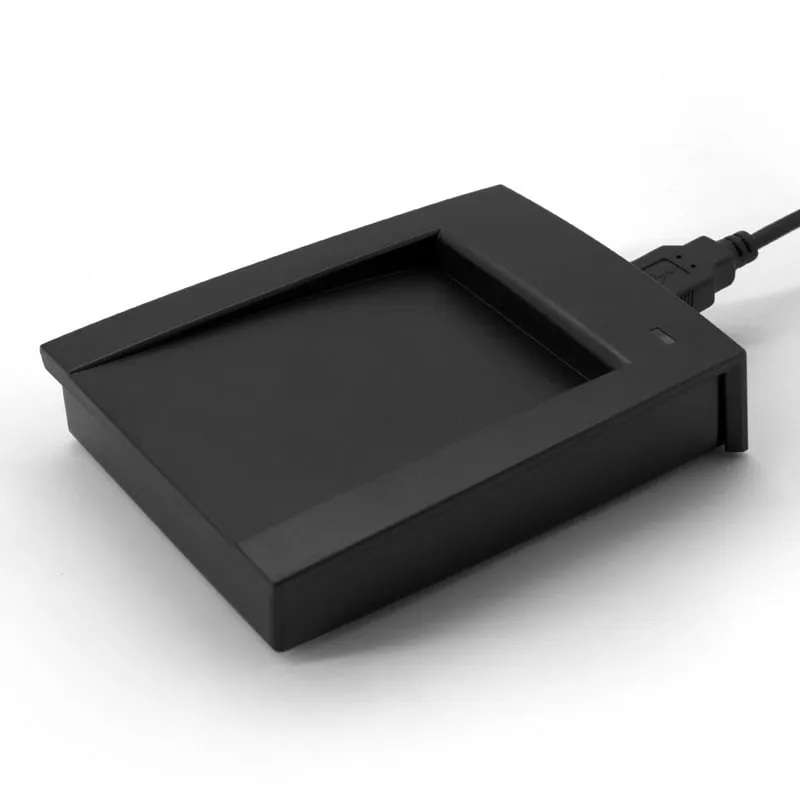 13.56MHz
 H155-U
ISO 15693 USB RFID Reader for ICODE Tags, 13.56MHz Desktop
- USB
- Desktop
Read range: Up to 80 mm
 UHF
UHF