Integration & setup
How to Use an External NFC or RFID Reader on Android (USB-C OTG Checklist)
By Henrium · · 8 min read
Quick answer
An external USB-C reader lets an Android phone or tablet read cards its built-in NFC cannot, or read them without a custom app. The device must support USB OTG host mode. The reader takes power from the port and types each card number into the focused field like a keyboard, so check OTG, keyboard layout, focus and output format first.
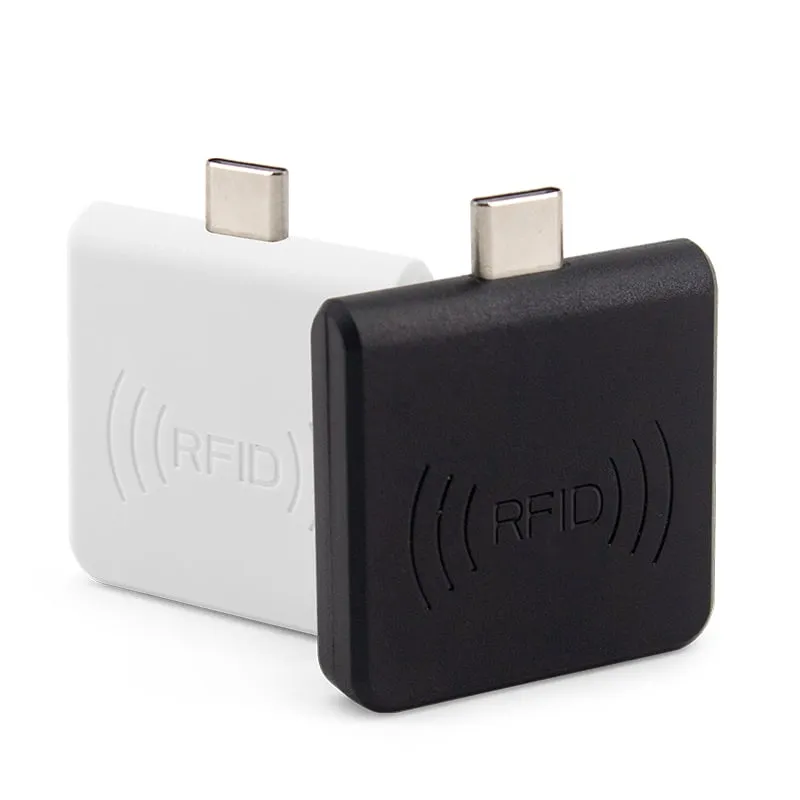
Android phones and tablets can read some RFID cards with built-in NFC, but not every card, not on every device and not without an app. An external reader, such as one of our USB-C RFID readers for Android, fills those gaps. It plugs into the charging port, takes power from the device and types each card number into the field that has the cursor, like a keyboard.
This guide explains when an external reader makes sense, how it works on Android and what to check before a rollout: OTG support, power, keyboard settings, output format and range. It closes with a troubleshooting table for the most common faults.
When an external reader beats built-in NFC
| Feature | Built-in phone NFC | USB-C plug-in reader |
|---|---|---|
| Frequencies | 13.56 MHz only | Set by the model: 13.56 MHz, 125 kHz, 134.2 kHz or UHF |
| 125 kHz EM4100 cards | No | Yes, with a 125 kHz model |
| FDX-B animal tags | No | Yes, with a 134.2 kHz model |
| UHF EPC labels | No | Yes, with a UHF model, at touch range |
| MIFARE Classic UID | Usually detected; data access depends on the phone’s NFC controller | Yes, with a 13.56 MHz model |
| Software needed | An app written for the Android NFC API | None: the number is typed into any text field |
| Devices without NFC | Not possible | Works if the device supports USB OTG |
| Where staff tap the card | Antenna position differs by phone model | Always on the reader face |
| Card memory or NDEF records | Yes, with a suitable app | No: our USB-C readers output the ID only |
The external reader wins when the card is not 13.56 MHz, when the device has no NFC, or when the software already exists and only needs a number in a field. Built-in NFC wins when an app must read data stored on NFC tags. For the frequency background, see NFC reader vs RFID reader.
How a USB-C reader works on Android
Three pieces of standard technology do the work:
- USB host mode. Normally a phone is a USB device that a PC talks to. With a reader attached, the phone must act as the host and supply power. This is what “USB OTG” means on a phone; the USB-IF defines the host role for portable devices in its On-The-Go and Embedded Host supplements. On a USB-C port, the phone detects the attached peripheral through the port’s configuration (CC) lines and switches on its 5 V output.
- USB HID keyboard. The reader presents itself as a keyboard in the standard USB Human Interface Device (HID) class, so Android uses its built-in keyboard support. There is no driver, no app and no permission dialog.
- Text input. When a card is read, the reader sends one key press per character. Android delivers the keys to whichever text field has focus, as it would for any USB or Bluetooth keyboard.
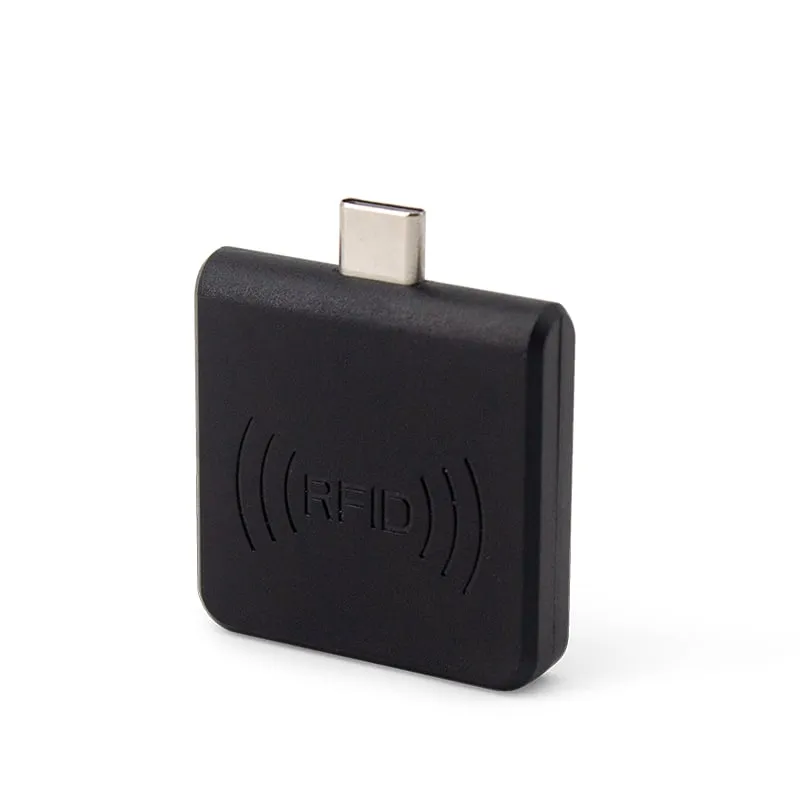
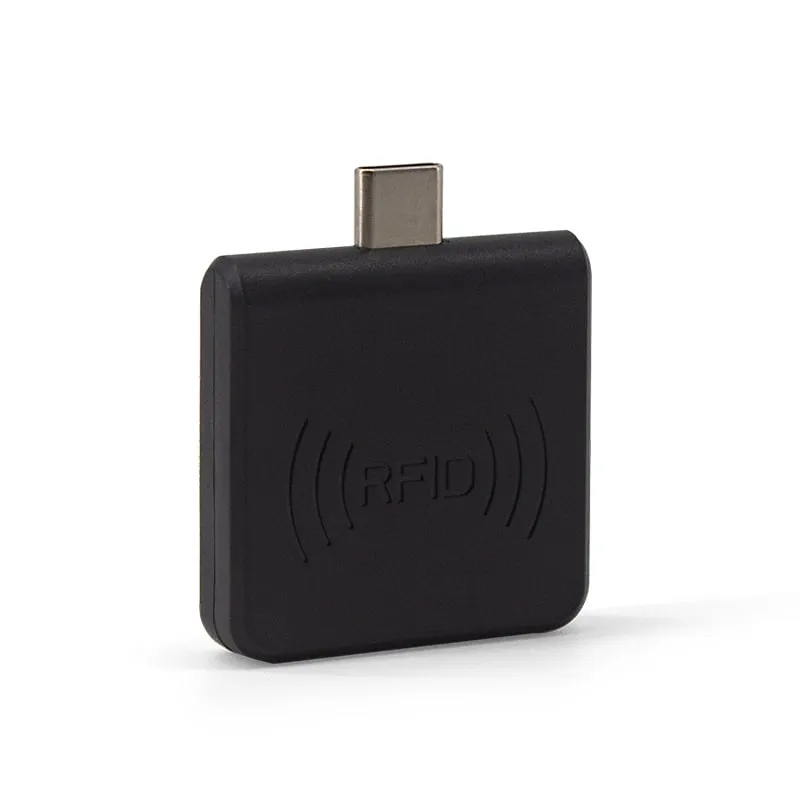
Our USB-C readers draw 100 mA at 5 V from the phone, well below the 500 mA limit for a USB 2.0 device, and have no battery to charge. They measure 35 × 35 × 7 mm without the plug and weigh about 20 g.
Choose the reader by card frequency
| Model | Reads | Read range | Default output |
|---|---|---|---|
| H220-C USB-C NFC reader | 13.56 MHz ISO/IEC 14443A: MIFARE Classic 1K/4K, NTAG203 (UID) | 0–30 mm face-on, 0–10 mm from the side | 10-digit decimal (4 bytes) |
| L220-C USB-C 125kHz EM4100 reader | 125 kHz EM4100, TK4100, SMC4001 | 0–30 mm face-on, 0–10 mm from the side | 10-digit decimal |
| U220-C USB-C UHF reader | UHF ISO 18000-6C (EPC Gen2) tags, 902–928 MHz | 0–5 cm | EPC followed by Enter |
| A220-C USB-C animal tag reader | 134.2 kHz FDX-B and 125 kHz EMID animal tags | 0–30 mm | 10-digit decimal (4 bytes) |
All four are read-only and share one housing. Apart from the A220-C, which reads both kinds of animal tag, each model reads one card technology, so a site with both EM4100 and MIFARE cards needs two readers. The U220-C is listed for 902–928 MHz only; check your country in UHF RFID frequency bands by country.
iOS is not a listed host for these readers. For iPhone and iPad, the H510-B Bluetooth NFC pocket reader (13.56 MHz, with a 125 kHz L510-B version) and the U510-B Bluetooth UHF pocket reader list iOS. The USB-C readers are also listed for Windows 7 and 10 PCs through an OTG adapter, but a desktop reader such as the H110-U 13.56MHz USB NFC card reader suits a fixed desk better.
The OTG checklist
- Confirm USB host (OTG) support on the exact device model. Look for “USB OTG” in the specification, not just “USB-C”. A quick field test is a USB keyboard or flash drive on a USB-C adapter. App developers can check the Android system feature
android.hardware.usb.host. - Switch OTG on if the device has a setting for it. Some phones and tablets ship with OTG off, and some switch it off again after a period without use. Check every device model in the fleet.
- Check the port and the case. The plug must seat fully. Thick rugged cases and some port covers prevent that, so try the reader with the case removed before deciding a device does not work.
- Watch the LED. The blue LED lights when the reader has power. No LED means no power from the port: OTG is off, the device does not support host mode, or the plug is not fully in.
- Set the physical keyboard layout. Android applies a layout to each hardware keyboard. On a French or Belgian (AZERTY) layout, the digit keys type symbols such as
&andéunless Shift is held, so a reader that sends 0–9 produces symbols. Open Settings > System > Languages & input (or Keyboard) > Physical keyboard and set the reader to English (US) so digits arrive unchanged. Menu names vary by brand. - Decide about the on-screen keyboard. While a hardware keyboard is connected, Android may hide the on-screen keyboard. If staff also type by hand, turn on the on-screen keyboard option in the same menu.
- Put the cursor where the number belongs. The number goes to the focused field. Test in your real app, web form or spreadsheet, not only in a notes app.
- Agree the output string. The H220-C, L220-C and A220-C type a 10-digit decimal by default; the U220-C types the EPC and Enter. If your app needs hex, a different length, the full 15-digit animal ID or a specific terminator, state it when you order; the output format is confirmed in your quotation. RFID card number formats explains the options.
- Mind the phone’s own NFC. If phone NFC is on and a 13.56 MHz card comes near the phone’s antenna, Android may react as well, showing a tag message or opening another app and taking focus from your field. At a dedicated reading station, switch phone NFC off or keep cards away from the phone body.
- Test with your real cards on every device model. Card and fob construction changes range. Order samples, pilot them with a small group, then confirm the volume order.
Receiving the number in your own app
To your app, the reader is a keyboard, so there is no SDK to integrate. A few habits make keyboard input reliable:
- Give reads a dedicated field. Use a single-line
EditTextthat has focus when the screen opens, and validate what arrives, for example exactly 10 digits. - Treat Enter as the end of a read. A hardware Enter reaches a single-line
EditTextthrough itsOnEditorActionListener, or you can watch forKEYCODE_ENTERinonKeyUp(). If your reader sends no Enter, trigger on length or a short pause instead. - Capture without a visible field. Override
dispatchKeyEvent()in the Activity to see key events before the focused view does, and buffer characters until Enter. - Tell the reader from a real keyboard.
KeyEvent.getDevice()returns the input device, and itsgetVendorId()andgetProductId()identify the reader, so your app can handle its key events separately. - Web apps work too. A browser-based system receives the same key events. Read
KeyboardEvent.codeso the keyboard layout does not matter; the keyboard wedge explainer has a JavaScript example. - Keep staff on the input screen. On a shared tablet, Android’s app pinning or your device-management kiosk mode stops users leaving the page that receives reads.
No command set or SDK is listed for the USB-C readers: they only type the ID. Your app cannot change their settings, read card memory or write to cards through them. If a project needs that, describe it in your RFQ.
Troubleshooting
| Symptom | Likely cause | What to do |
|---|---|---|
| Blue LED stays off | Device not in host mode, OTG switched off, or plug not seated | Turn OTG on, remove the case, try another device model |
| LED on, but nothing is typed | No text field has focus, or the card uses another frequency | Tap into the field first; check the card type against the reader |
| Reads only sometimes | Card held at the side or at the edge of range | Hold the card flat on the reader face, within 30 mm (5 cm for UHF) |
| Symbols or letters instead of digits | Physical keyboard layout is not English (US) | Change the layout for the reader in Physical keyboard settings |
| On-screen keyboard disappeared | Android hides it while a hardware keyboard is connected | Turn on the on-screen keyboard option |
| Form submits or focus jumps after a read | Enter or Tab after the number moves focus | Handle Enter in the app, or order a different terminator |
| Another app opens when a card is tapped | Phone NFC read the card too | Switch phone NFC off at the reading station |
| Worked earlier, now dead | OTG switched itself off after a period without use | Switch OTG on again and add it to your device setup notes |
If a card reads but the number does not match your records, the cause is usually the output format, not the reader or the card. Compare both numbers in the card number converter.
Before a volume order
- List every phone and tablet model that will host a reader, and test each one.
- Write down the output string your app expects: digits, base, length and terminator.
- Confirm the card technology with a sample, especially at sites with mixed 125 kHz and 13.56 MHz cards.
- For a private-label version, see OEM and ODM options; terms are confirmed in your quotation.
Compare the models on the Type-C OTG RFID reader page, or send your device model and a sample card with your inquiry and we will confirm the reader and output format before you order.
Frequently asked questions
Does an external USB-C reader work with an iPhone?
iOS is not a listed host for our USB-C readers, including iPhone models with a USB-C port, so we do not claim iPhone support. For iPhone and iPad, the Bluetooth H510-B (13.56 MHz) and U510-B (UHF) pair as keyboard-type devices and list iOS.
Can I charge the phone while the reader is plugged in?
Not directly, because the reader occupies the USB-C port. A USB-C hub with power pass-through can connect both, but not every phone keeps USB host mode while it charges through a hub, so test the exact hub and phone model. The reader itself draws 100 mA at 5 V.
Why does the on-screen keyboard disappear when the reader is connected?
Android treats the reader as a hardware keyboard and may hide the on-screen keyboard while one is connected. If staff also type by hand, turn on the on-screen keyboard option in the Physical keyboard settings. Menu names vary by brand.
Do I need to develop an app to use an external reader?
No. The reader types the card number into any focused text field, including web forms, spreadsheet apps and existing business apps. If you build your own app, a single-line text field that handles Enter is enough. No SDK is listed for these models, and keyboard input does not need one.
Why use an external reader if my phone already has NFC?
Phone NFC reads only 13.56 MHz, so it cannot read 125 kHz cards, 134.2 kHz animal tags or UHF labels, and it needs an app written for the Android NFC API. An external reader also works on tablets without NFC and gives staff one fixed place to tap.
Readers mentioned in this guide
 13.56MHz
 H220-C
USB-C 13.56MHz NFC Reader for Android Phones, MIFARE UID
- USB
- Plug-in
Read range: 0–30 mm front and back, 0–10 mm from the side
 125kHz
 L220-C
USB-C 125kHz EM4100 RFID Reader for Android Phones
- USB
- Plug-in
Read range: 0–30 mm front and back, 0–10 mm from the side
 UHF
UHF 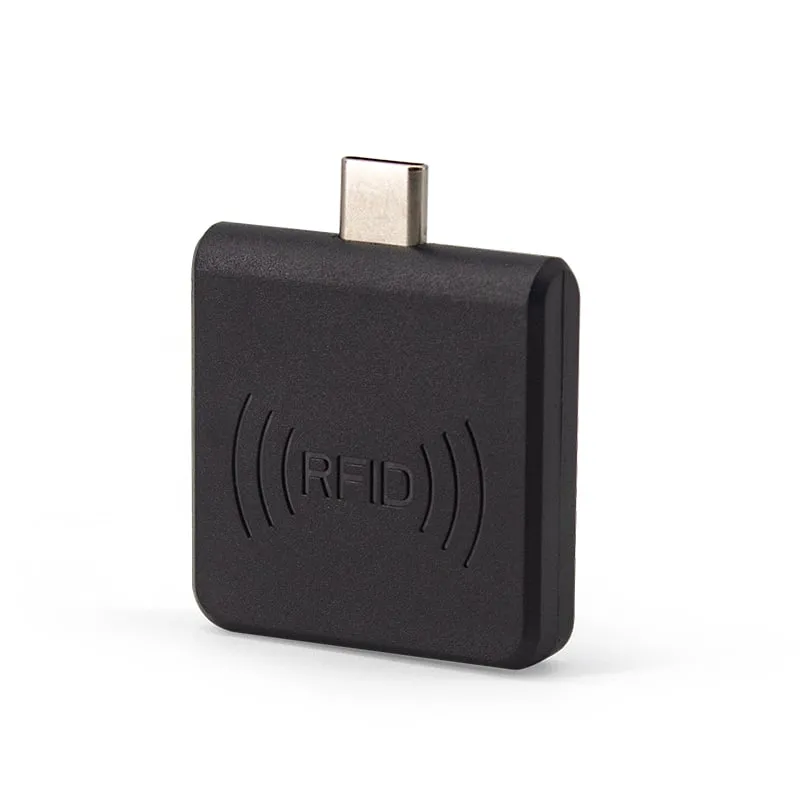 134.2kHz